1. Signing in with your FIDO card
- The kiosk will load and show the following log in prompt.
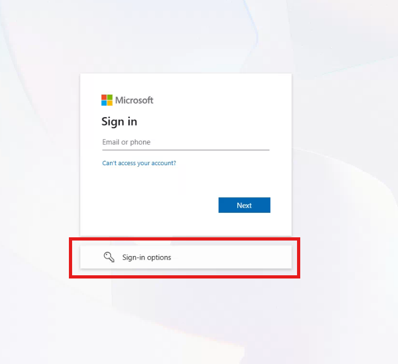
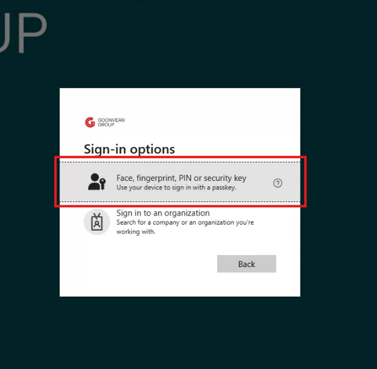
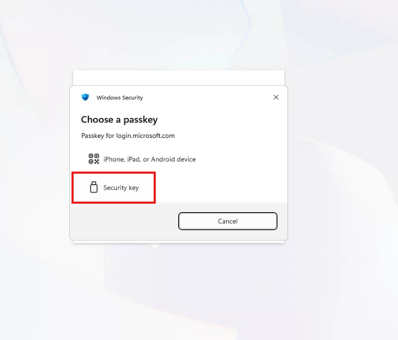
- Select “Sign-in options” then “Face, Fingerprint, PIN or security key”. Then “Security key”
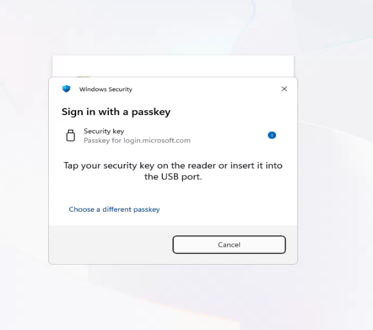
- Insert your FIDO card using the card reader with the chip and your details facing towards you.
- When prompted, enter your PIN and select OK. You will be asked if you wish to stay signed in. Either option can be selected as it will not affect the session.
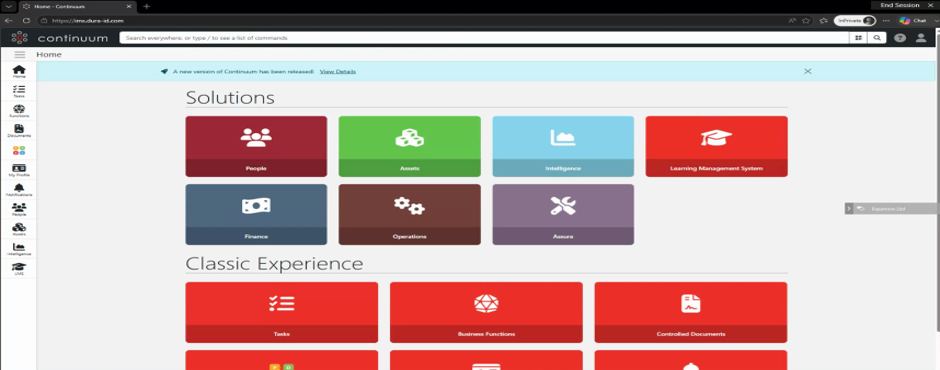
- Once signed in, you will be at your organisations Continuum screen logged in to your profile.
2. Ending your session
- Complete your work on the kiosk.
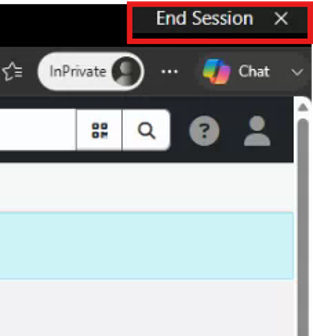
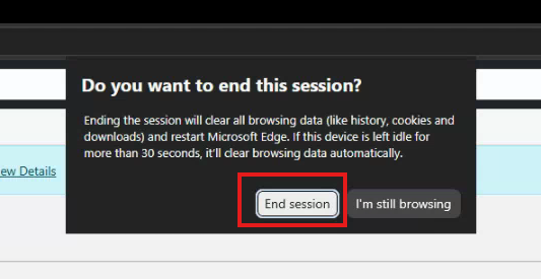
- Sign out of the website by selecting the “End Session” button in the top right-hand corner of the screen. Then confirm you wish to end the session by selecting the new “End session” button.
- Remove your FIDO card from the reader.
- The kiosk will then revert itself back to the login screen. If the kiosk provides a restart, reset, or end session option, use it before leaving the machine.
3. Troubleshooting
Issue | What to try |
The kiosk does not power on | Check that the device is plugged in and switched on. Report the issue if the screen remains blank. |
The FIDO card is not recognised | Remove and reinsert the card. Check the keyboard card reader connection. Try again after a few seconds. |
It does not accept or you have forgotten your PIN | Re-enter the PIN associated with your FIDO card. If you do not know it, contact support on 01872 696999. |
4. Security reminders
- Keep your FIDO card secure and do not share it with anyone else.
- Do not leave the kiosk while you are signed in.
- Always remove your FIDO card when you have finished.
- Report lost, stolen, or damaged FIDO cards immediately to your line manager and IT support.
- Do not attempt to change kiosk settings or bypass the restricted kiosk experience.
5. Support
If you experience an issue with the kiosk, that you cannot resolve, please contact the Equinoxx support desk on 01872 696999 for assistance. Include your organisation, a short description of the problem, any error message shown on screen, and whether the issue relates to the FIDO card, Windows sign-in, or the website.
Was this article helpful?
That’s Great!
Thank you for your feedback
Sorry! We couldn't be helpful
Thank you for your feedback
Feedback sent
We appreciate your effort and will try to fix the article