Adding rules is a great way to manage the inflow of email. You can add rules on a shared mailbox you have access to the same way you add rules to your own account.
Open a Shared Mailbox using Outlook on the web
Use this method if you want to view and manage the email rules for the shared mailbox via a browser window.
- Sign in to your account in Outlook on the web https://outlook.office.com/
- On the Outlook on the web navigation bar, select your name in the upper right corner.
- Choose Open another mailbox
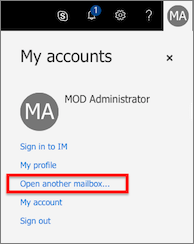
- Enter the email address of the shared mailbox that you want to access and select Open.
Another Outlook web session opens in a separate window, allowing access to the shared mailbox. You can now save this as a favourite in your browser if this is a mailbox you need to regularly use.
Set a rule in Outlook on the web for a shared mailbox
Once you have a shared mailbox open, use the steps below to create and manage mailbox rules.
- Click on the Settings menu icon in the top right

- In the Menu, click Mail, Rules. Here you can create new mailbox rules or modify existing ones.
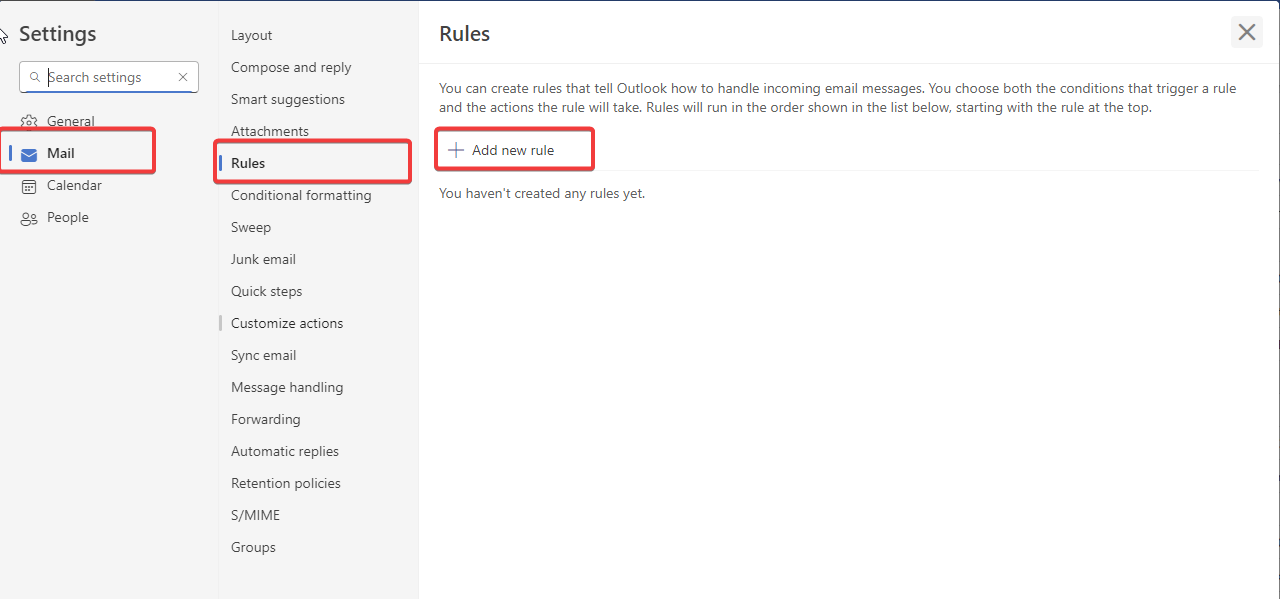
Add conditions, actions, and exceptions accordingly.
Was this article helpful?
That’s Great!
Thank you for your feedback
Sorry! We couldn't be helpful
Thank you for your feedback
Feedback sent
We appreciate your effort and will try to fix the article