When working in a folder in Microsoft SharePoint or Teams, you can add a shortcut to the shared folder in your OneDrive to easily find and work with the files. These shortcuts appear in OneDrive on the web and Windows File Explorer on any device you're logged in on.
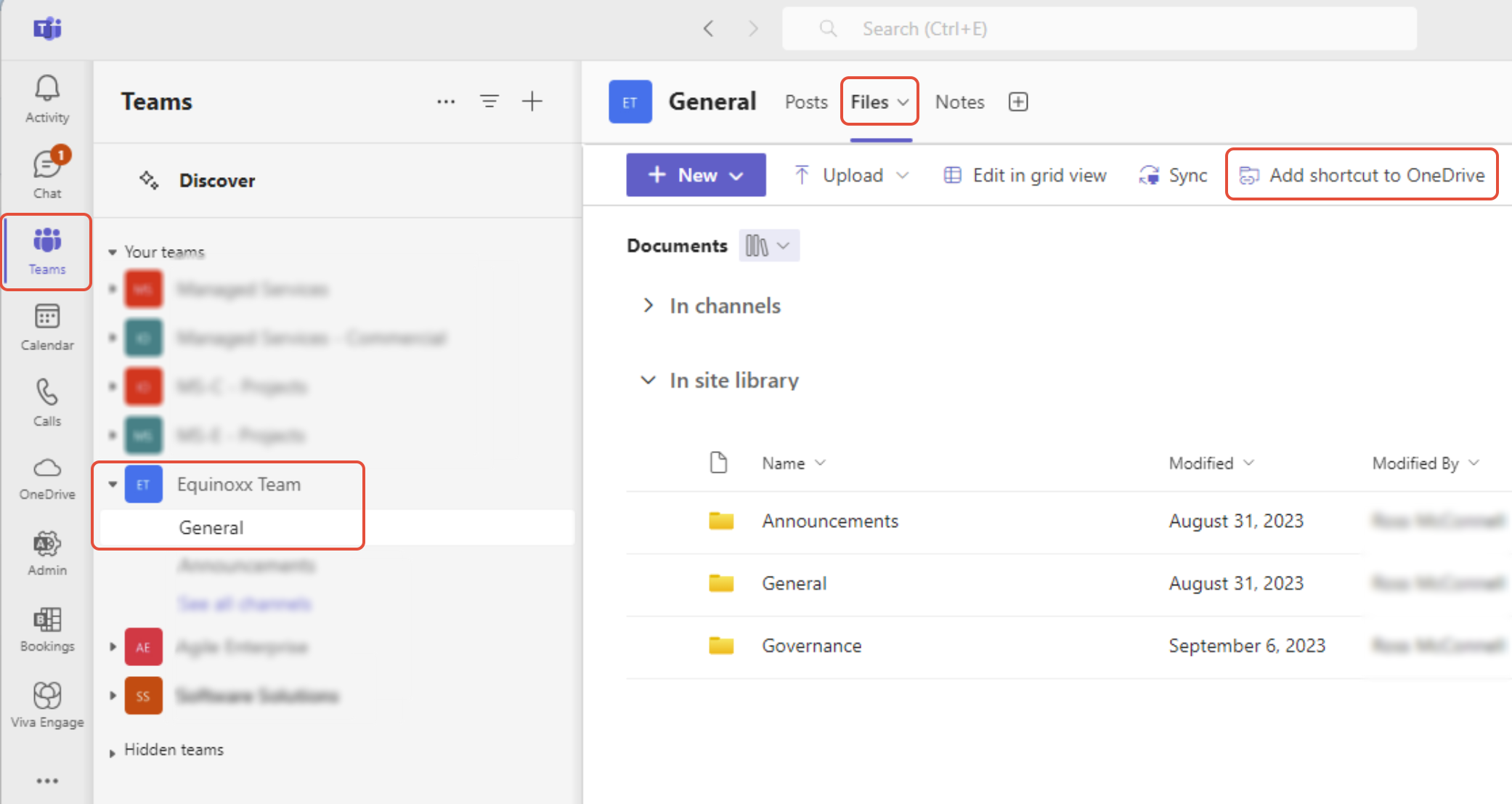
- Open Microsoft Teams and select Teams on the left
- Click into the Team Site and Channel
- Click on "Files" on the top of the channel
- Find the folder you'd like to add and click "Add shortcut to OneDrive"
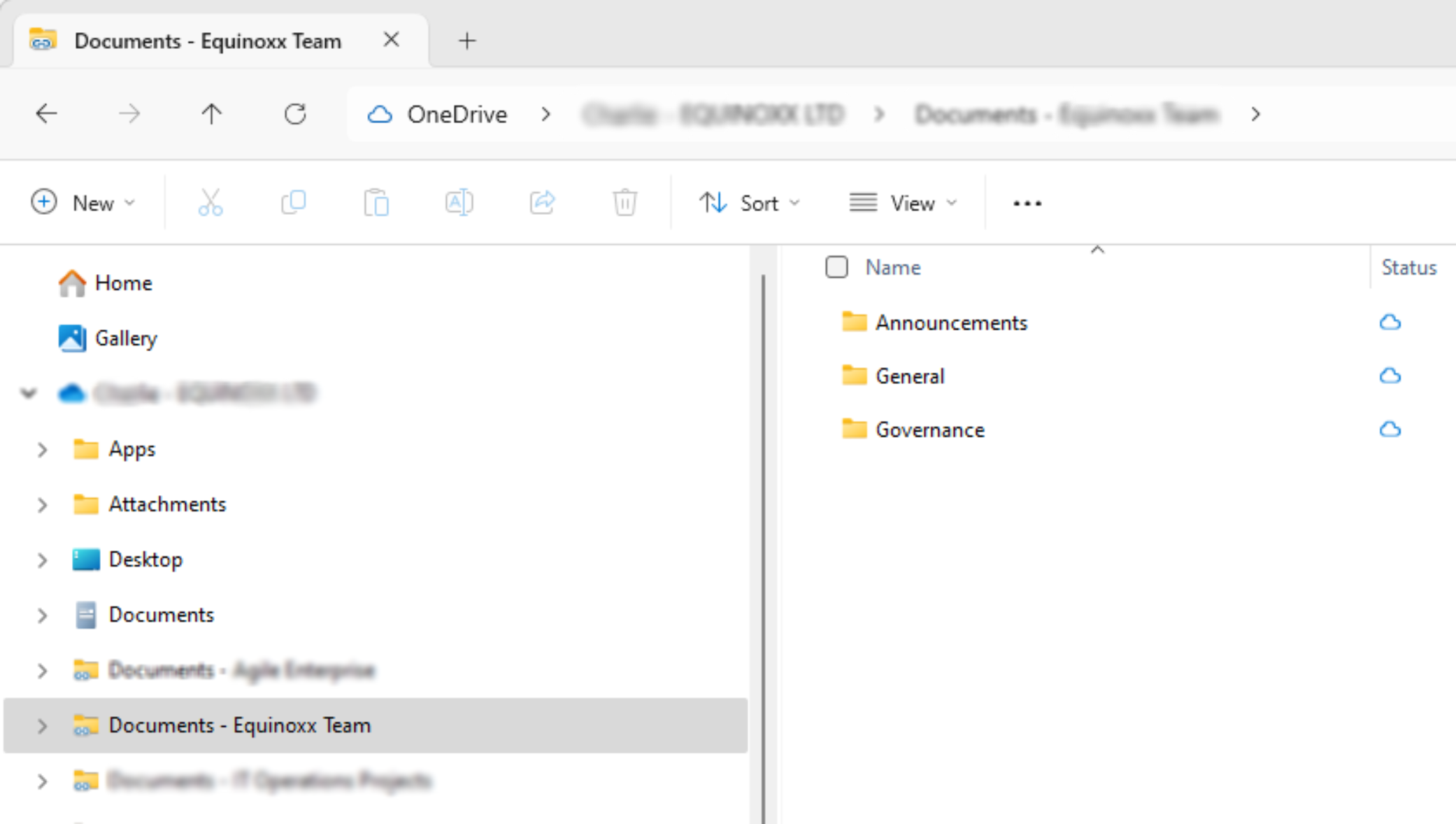
- Once M365 has synced, the folder should appear in your file explorer on your PC.
Was this article helpful?
That’s Great!
Thank you for your feedback
Sorry! We couldn't be helpful
Thank you for your feedback
Feedback sent
We appreciate your effort and will try to fix the article