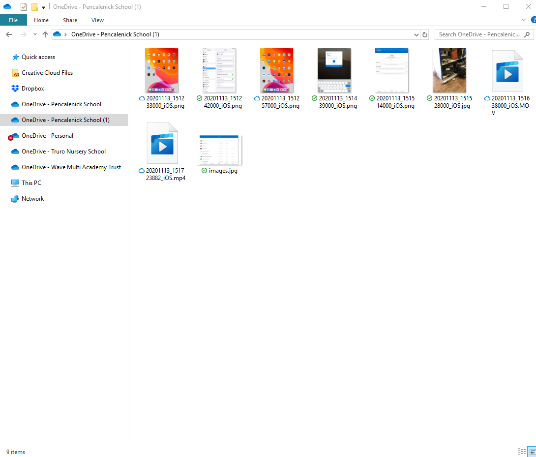
Using OneDrive means you can get to your photos and videos anywhere. You can manage the same photos both through the iPad and through windows.
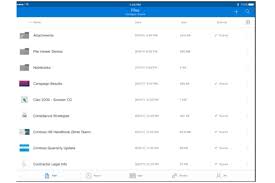
1.First on the iPad, download the OneDrive app from the apple app store and sign into it using your office 365 account details.
2. (THIS IS REALLY IMPORTANT)
Next in the iPad settings under photos you must tick the “automatic “ setting so that photo and video files are in the right format when they go onto OneDrive (see the picture below)

You can now capture photos and videos directly into your OneDrive storage space within the iPad app.
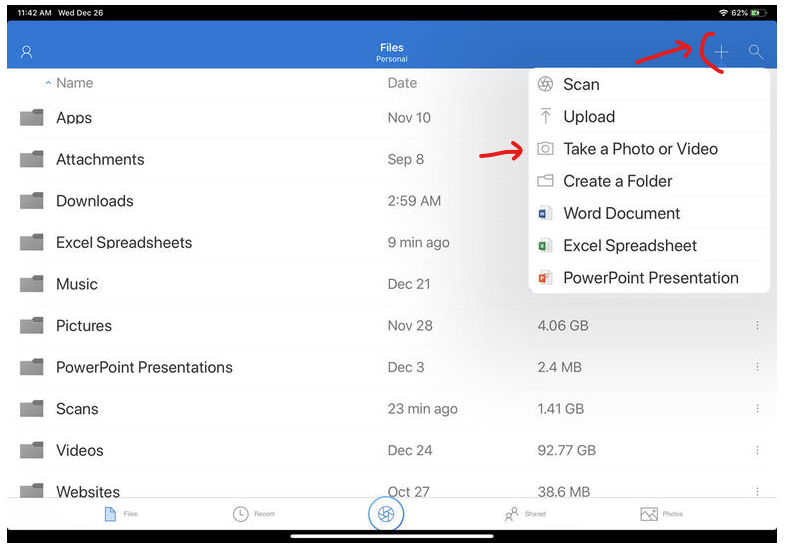
Tap on the files tab at the bottom of the screen. Then click on the + button at the top right. And choose “Take a photo or video”
3. Next we set up our OneDrive on our windows PC.
On your windows PC search “OneDrive” in the search bar at the bottom right
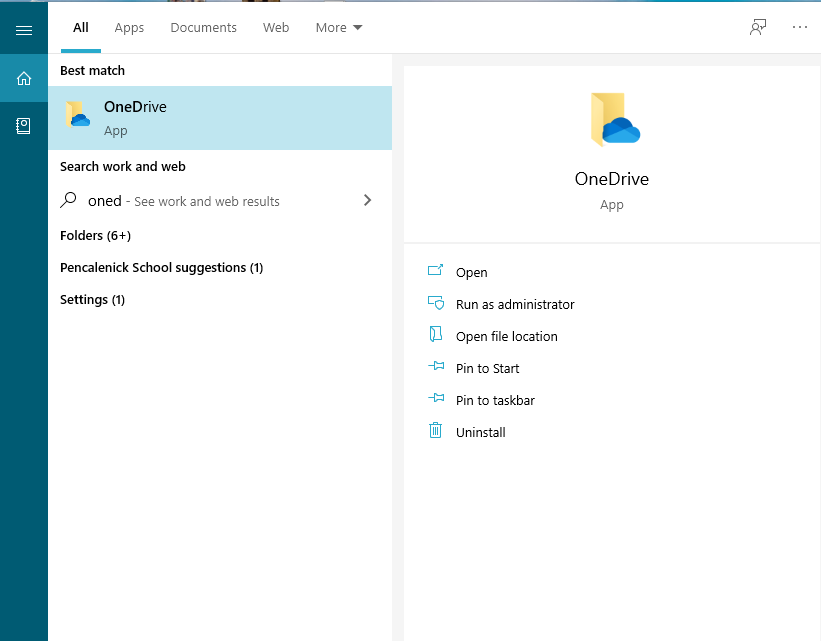
Open one drive and sign in using the same office 365 account.
After following the prompts and going through the welcome screens you will be able to see your OneDrive folder along with your other files.

You can now store your files and get to them on either iPad or windows. Once they are on OneDrive they can also be safely deleted off the iPad.
Frequently Asked Questions
Q. What if I want to upload photos to OneDrive that are already on my iPad camera roll? - Updated 15/11/2021 PLEASE READ
A. Unfortunately a recent change has meant any photos uploaded from the camera roll are not changed into a file that works well with windows. This means that these image files have to be converted before being able to use them in a windows app E.G. Microsoft word or PowerPoints.
Q. If I take a photo/video within the OneDrive app does it get saved on my iPad.
A. No. It will save the photo/video directly into OneDrive and not take up any space in the iPad camera roll.
Q. I'm uploading photos to OneDrive on my iPad but they are not appearing in my OneDrive on windows??
A. Check that you are signed in to OneDrive on both devices other wise they will not update. Also check that both devices are connected to the internet in order to sync.
On windows you can check you are signed in by looking at the OneDrive icon

If the OneDrive “cloud” has a line through then it means you are not signed in.
Q. When I upload a video to the OneDrive app it doesn’t play on Windows??
A. There are 2 things you can do here. Either:
1. Ensure you take the video within the OneDrive app and not with the normal iPad camera or
2. Open the video file in windows with an app called VLC media player instead of the default windows video player, then it will play fine
(This is due to the way the iPad converts the video file from an apple format to a windows format. Also ensure that you have changed the setting in step 2 of this guide)
If you have any other questions that you feel should be added here please let us know by emailing us at support@dns.co.uk
Thanks and enjoy using the OneDrive iPad app
Was this article helpful?
That’s Great!
Thank you for your feedback
Sorry! We couldn't be helpful
Thank you for your feedback
Feedback sent
We appreciate your effort and will try to fix the article