Outlook for Windows
Adding contacts via Contacts Hub
- Click People at the bottom left of the screen.

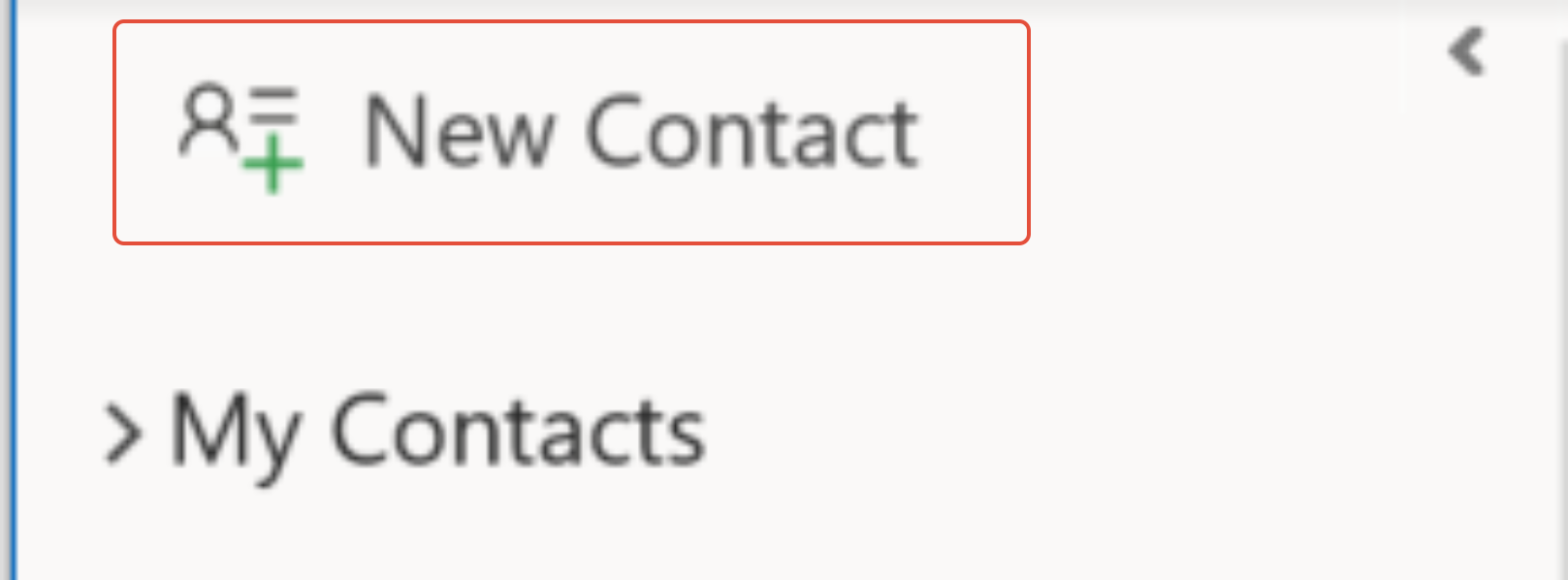
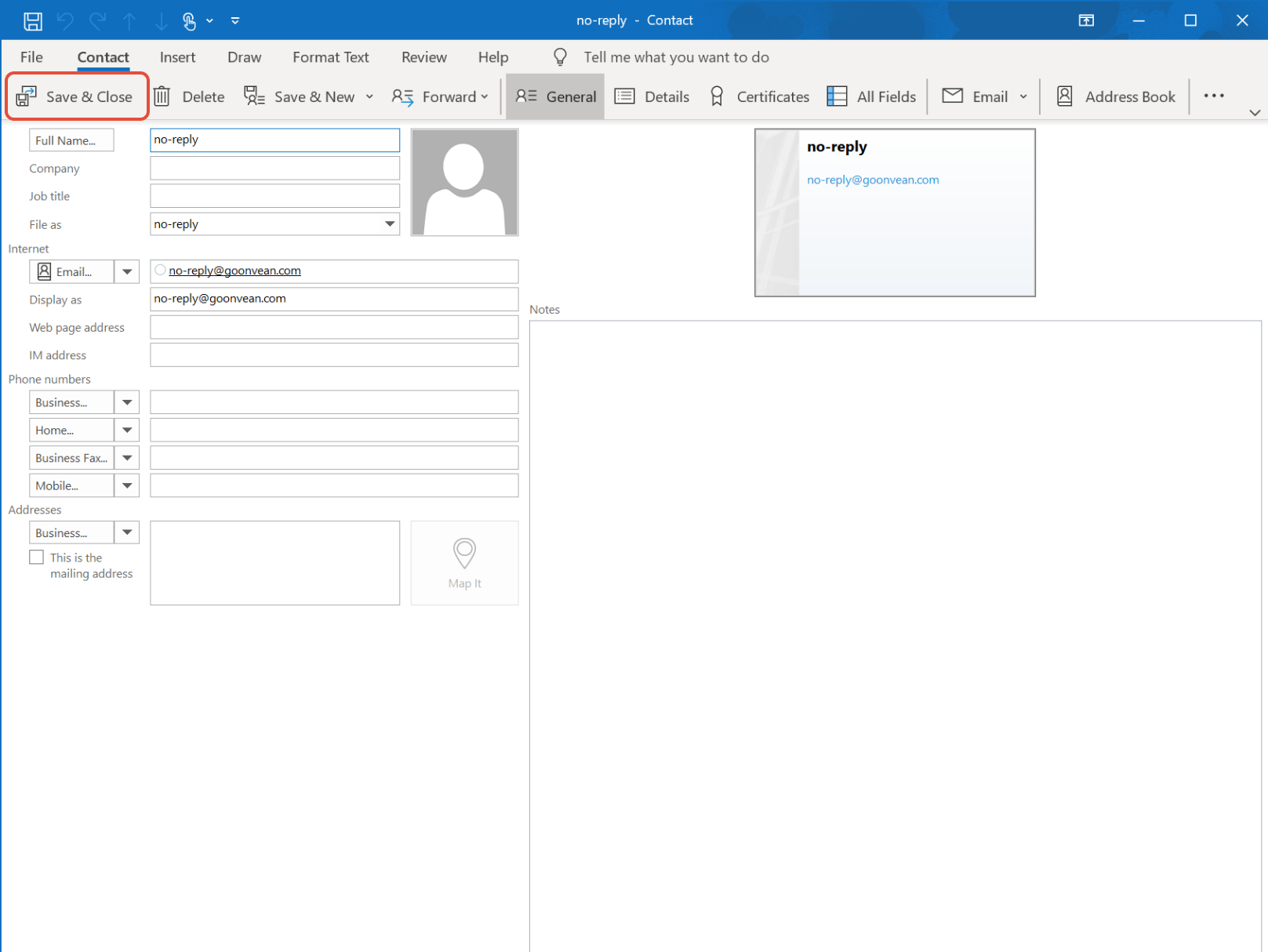
- From the top left of the screen, select New Contact or press Ctrl+N.
- Enter a name and any other information that you want to include for the contact.
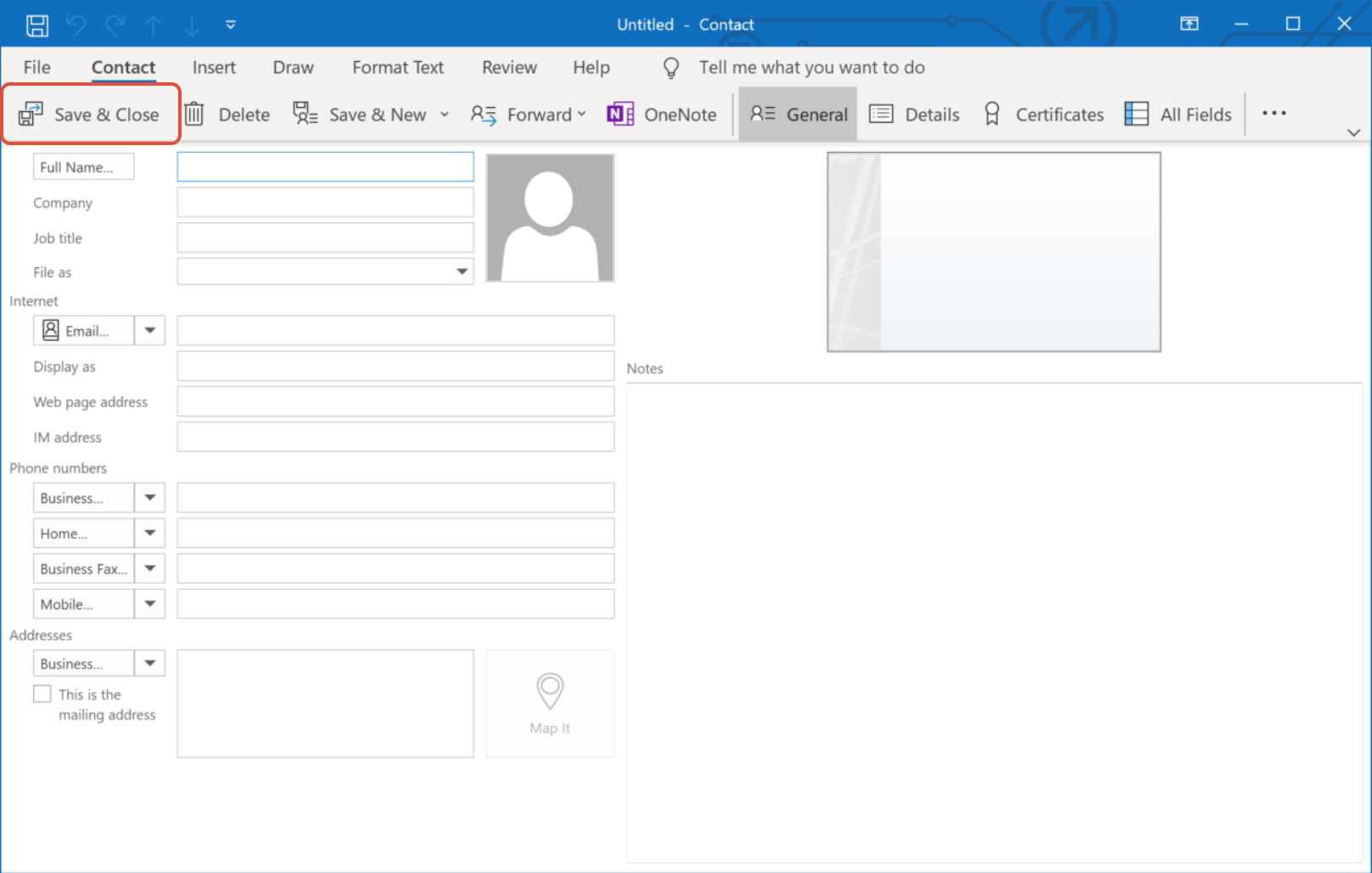
- If you want to immediately create another contact, choose Save & New (this way, you don't have to start over for each contact).
- When you have finished entering new contacts, choose Save & Close.
Creating a contact from an email
- Open the email
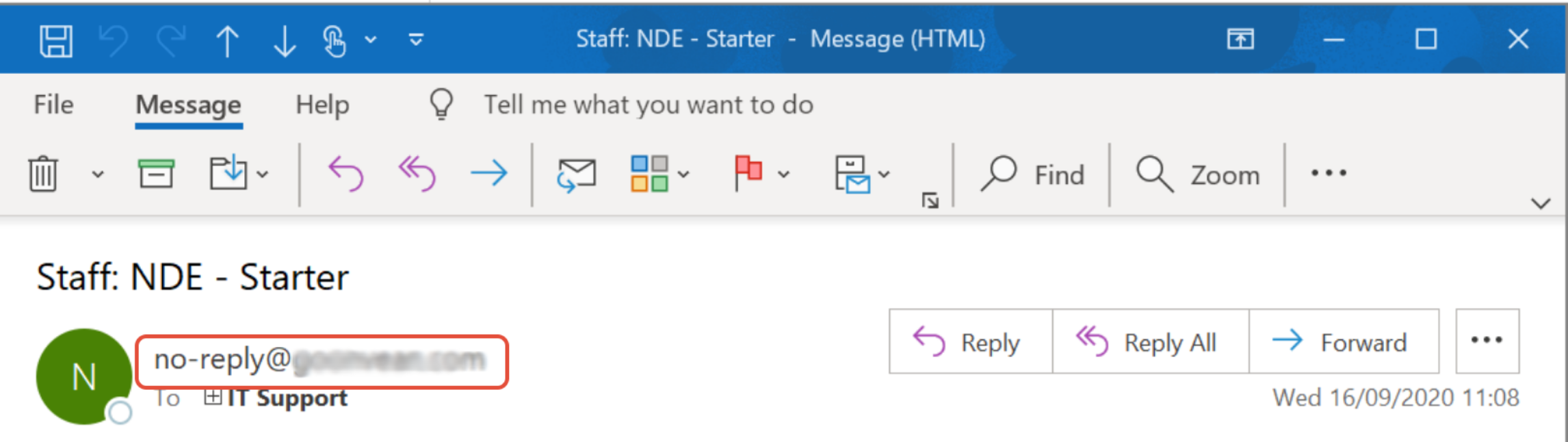
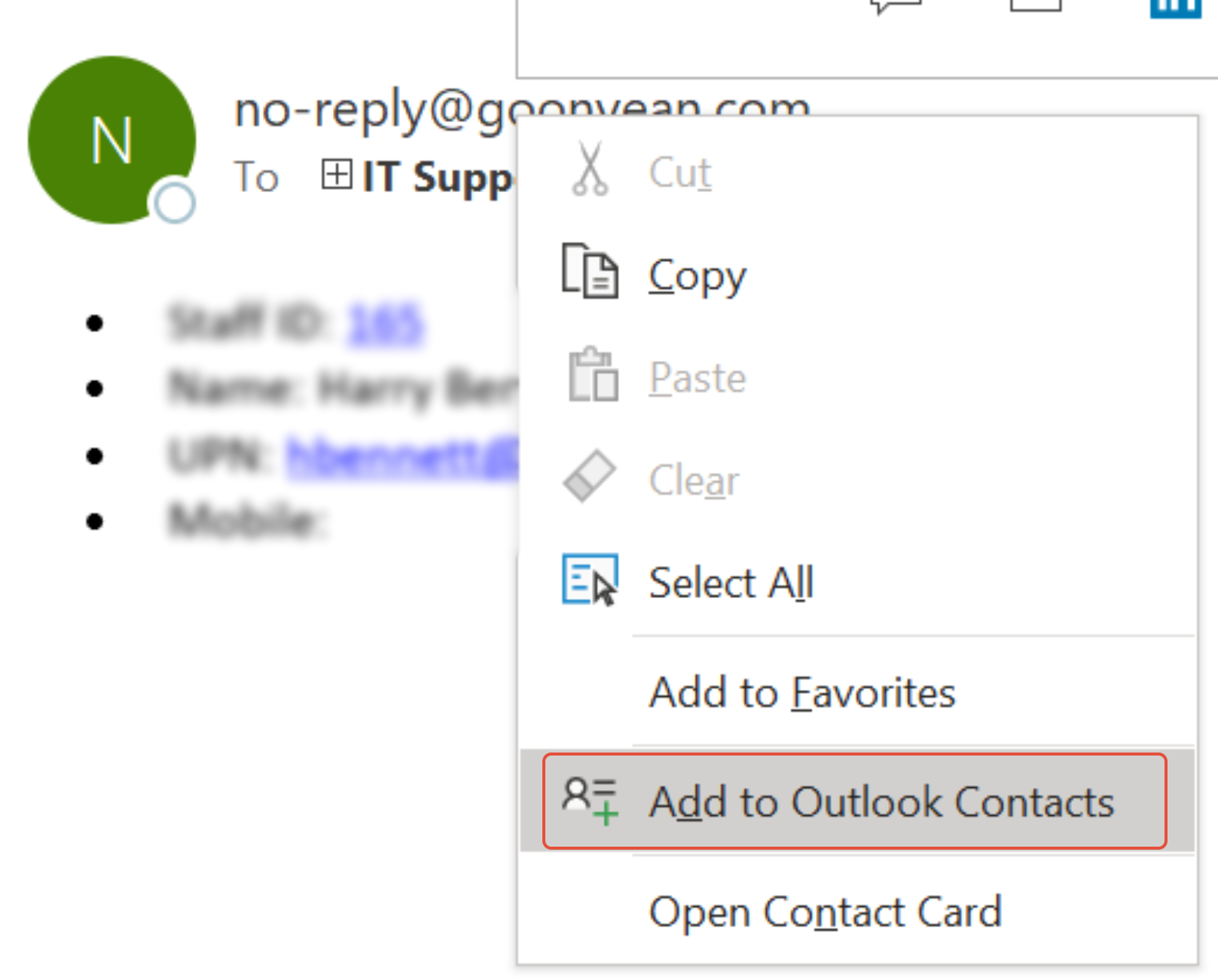
- Right click the address you wish to save and click Add to Outlook contacts
- Click Save and Close
Outlook for Android
- Open the Outlook App
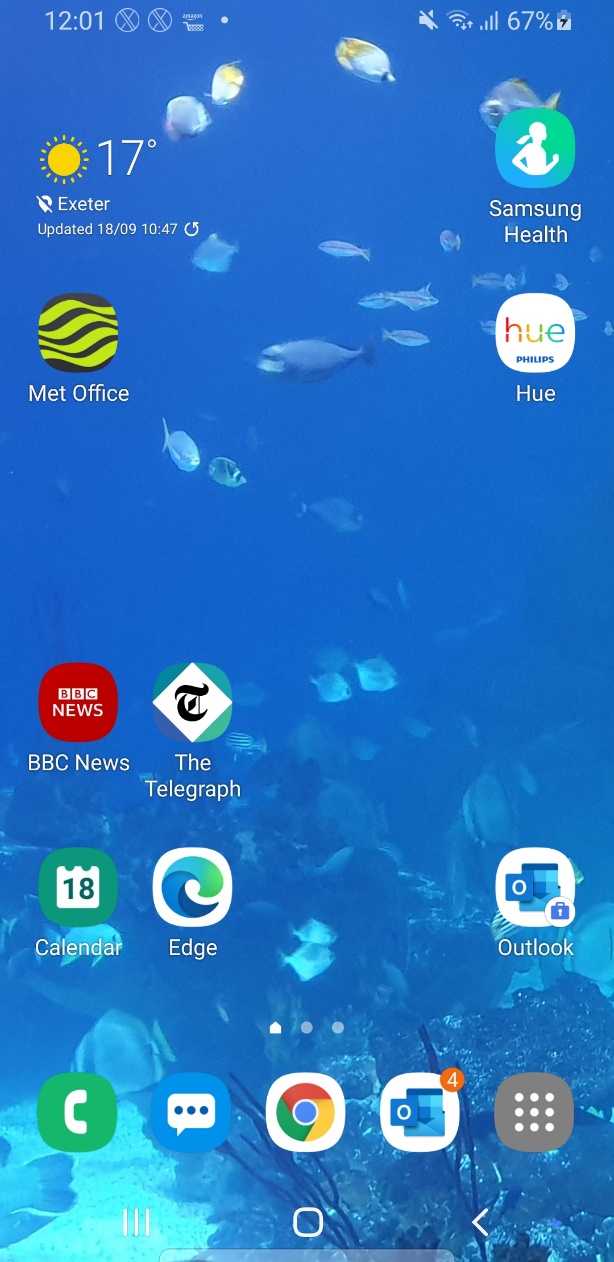
- To create a new contact in Outlook for iOS, tap on the search bar near the bottom of the screen

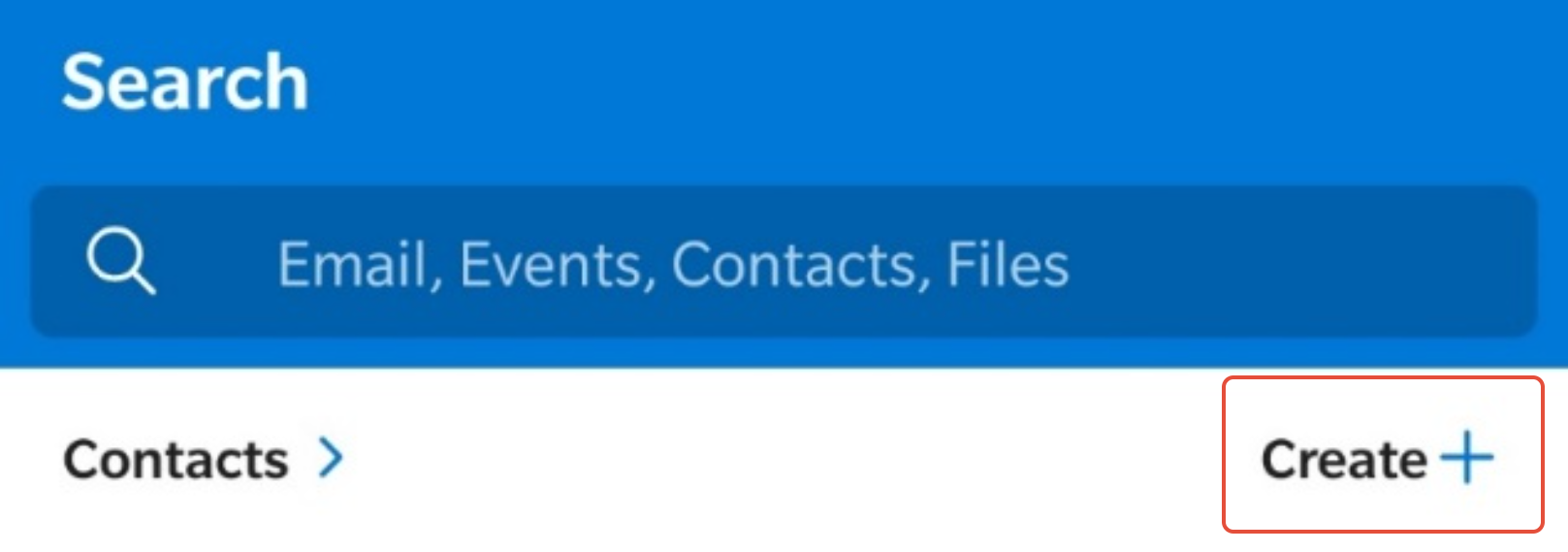
- Tap Create + near the top right of the screen and select Add Contact
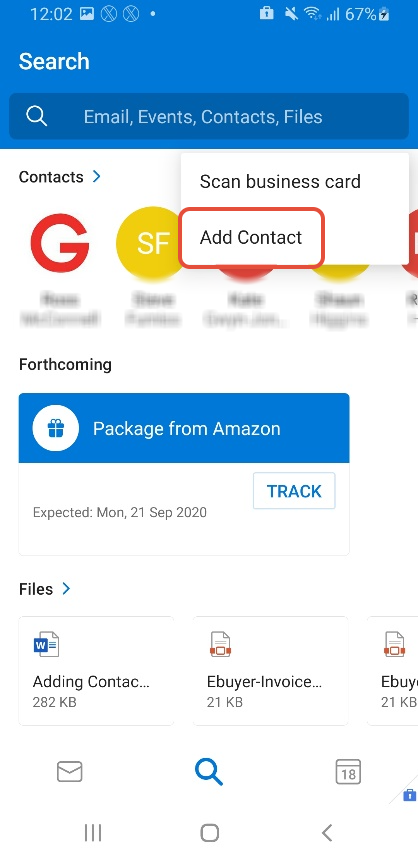
- Select add Contact
- Double check the correct Office 365 account is selected and Fill out the contact details
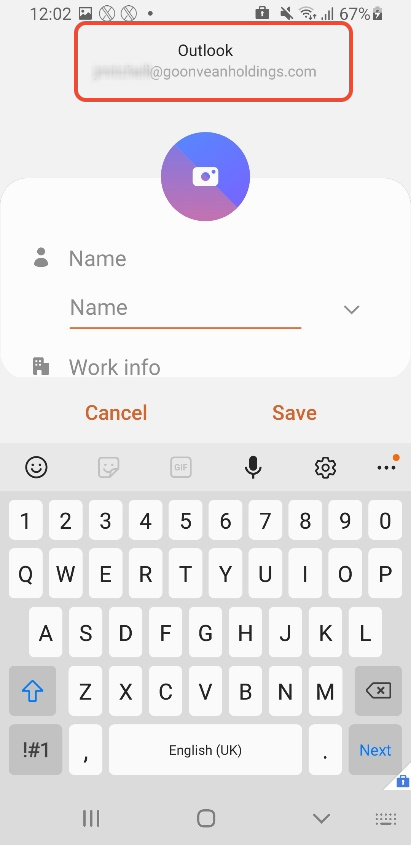
- Once you have entered all the information you need select Save
Outlook for Apple iOS
Work contacts will appear in the iOS contact app – but must be edited and created using the Outlook app only.
- Open the Outlook App

- To create a new contact in Outlook for iOS, tap on the search bar near the bottom of the screen

- Tap Create + near the top right of the screen and select Add Contact
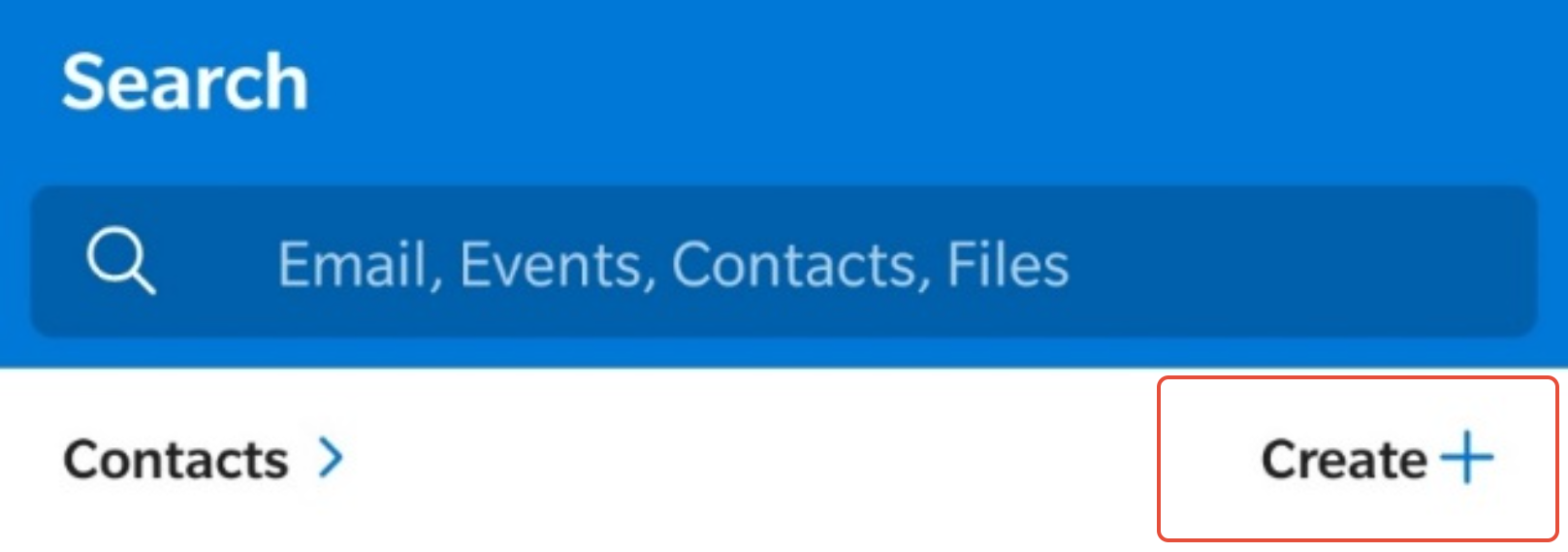
- Fill out the contact card as required.
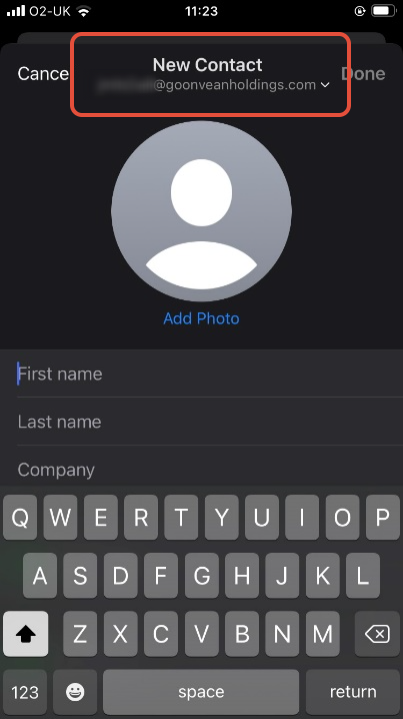
- Check that the contact is being saved to your Office 365 account
- Once you have entered all the information press Done
Was this article helpful?
That’s Great!
Thank you for your feedback
Sorry! We couldn't be helpful
Thank you for your feedback
Feedback sent
We appreciate your effort and will try to fix the article