Signing into One Drive.
1 - Find the OneDrive icon in the bottom right corner of the screen near the time. If the icon is not here, you may need to search “OneDrive” into the start menu.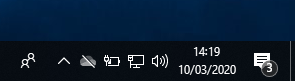
1a - If you opened OneDrive via Search you can skip this step, next right click on the Icon to get the menu shown here and select “Sign In”
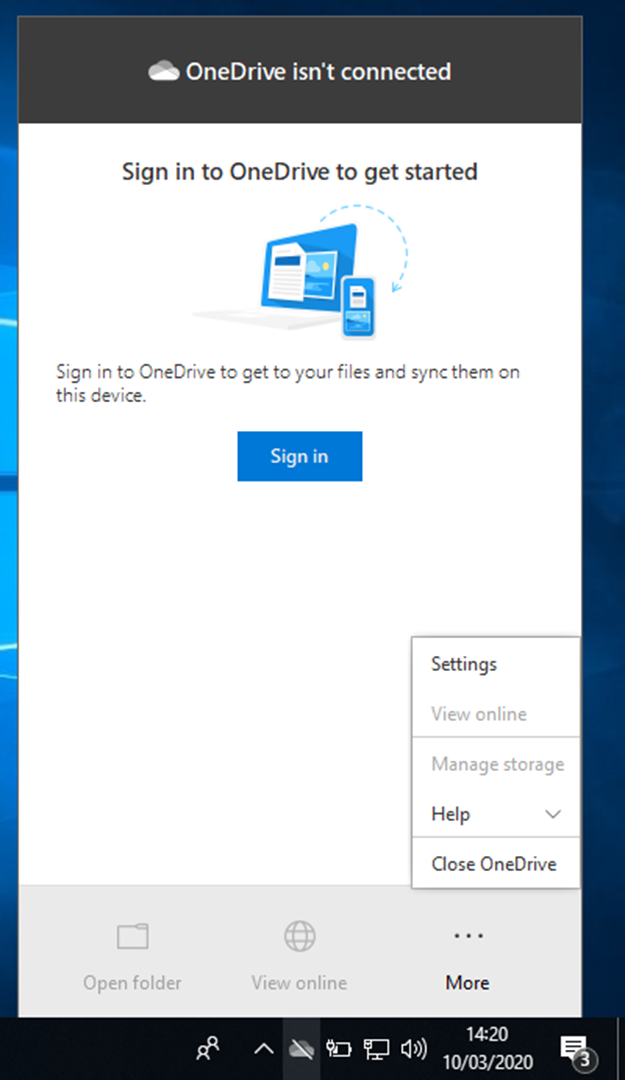
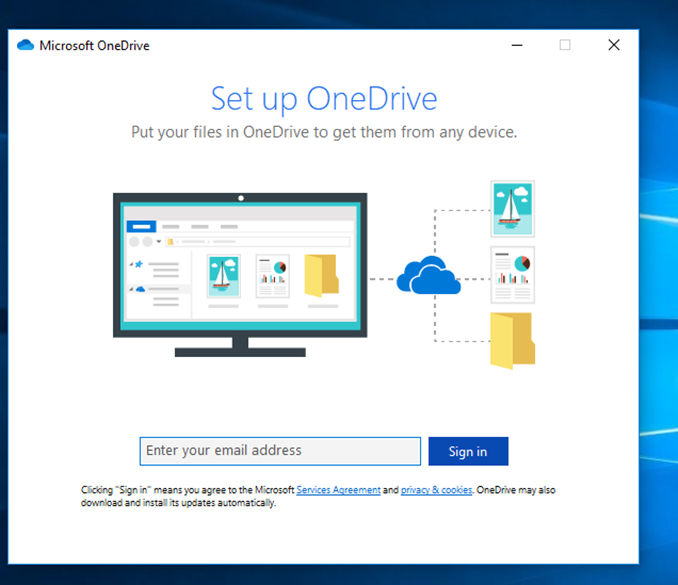
2 - After clicking Sign in or opening OneDrive from search will bring you here. Simply enter your work / school email address and press “Sign In”
3 - Now enter your password. This will be the same password you use to log into outlook.
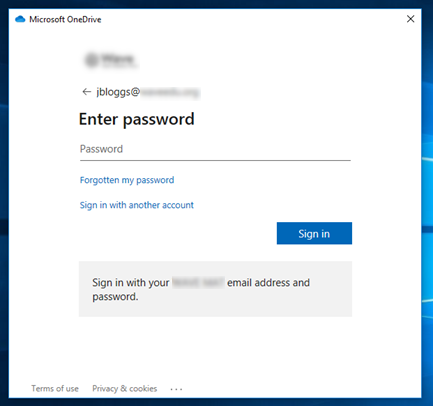
In the event your password is not working, or you would like a password reset please follow the link below to submit a support request to us. Please include an alternative contact method for us to inform you of your new password.
Support Portal: https://dns-ict.freshdesk.com/support/tickets/new
4 - After a successful sign in you will be taken to a window shown here. Please read through the information provided and when you are ready select open my OneDrive.
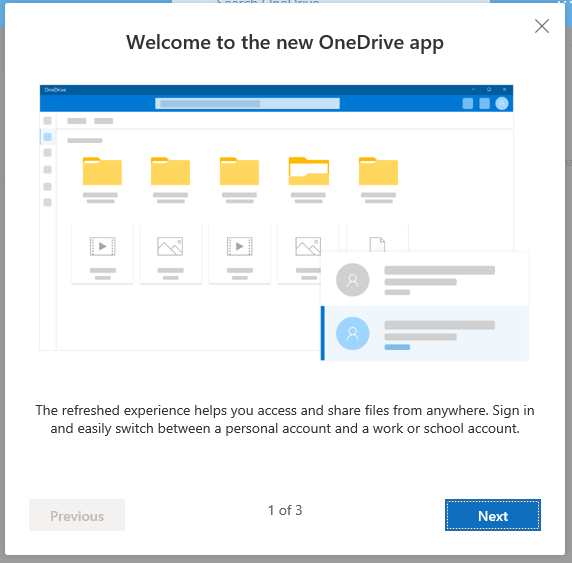
Success! Your OneDrive is now ready to use on the next page there is a few ways you can save to and open your files.
Saving from any Microsoft office application
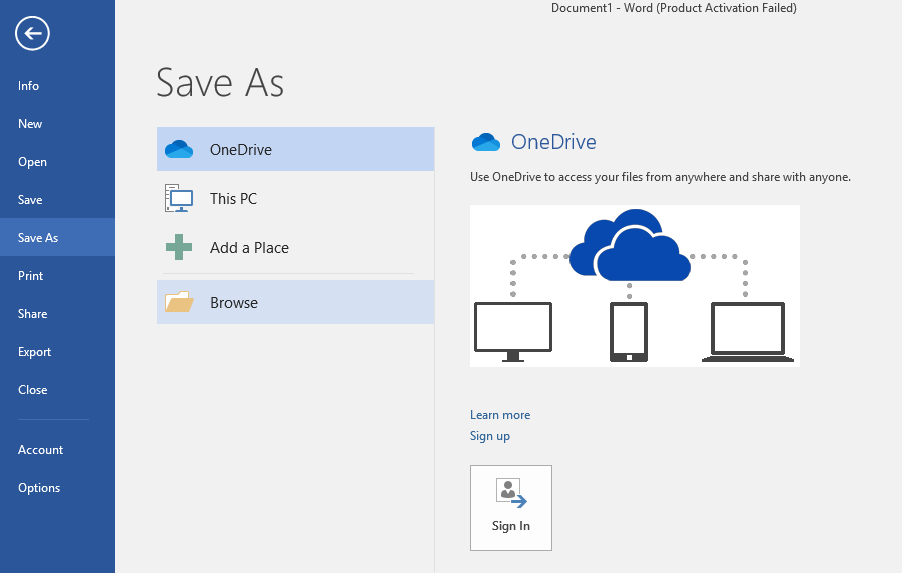
To view your files, open your documents / File Explorer and you will see OneDrive –School Name on the left sidebar.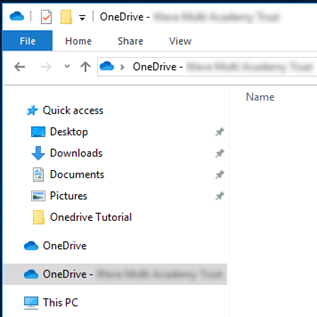
Further Reading:
Microsoft OneDrive training videos https://support.office.com/en-us/article/onedrive-video-training-1f608184-b7e6-43ca-8753-2ff679203132?wt.mc_id=otc_home
DNS Support Ticket Submissions: https://dns-ict.freshdesk.com/support/tickets/new
Was this article helpful?
That’s Great!
Thank you for your feedback
Sorry! We couldn't be helpful
Thank you for your feedback
Feedback sent
We appreciate your effort and will try to fix the article