Configuring Sage 50 on your pc
This guide walks you step-by-step through opening Sage 50, adding and connecting to a company stored on a network, and signing in to work without connected services. It’s useful for anyone who needs a quick, non-technical checklist to locate a company folder, establish the connection.
Launch Sage 50
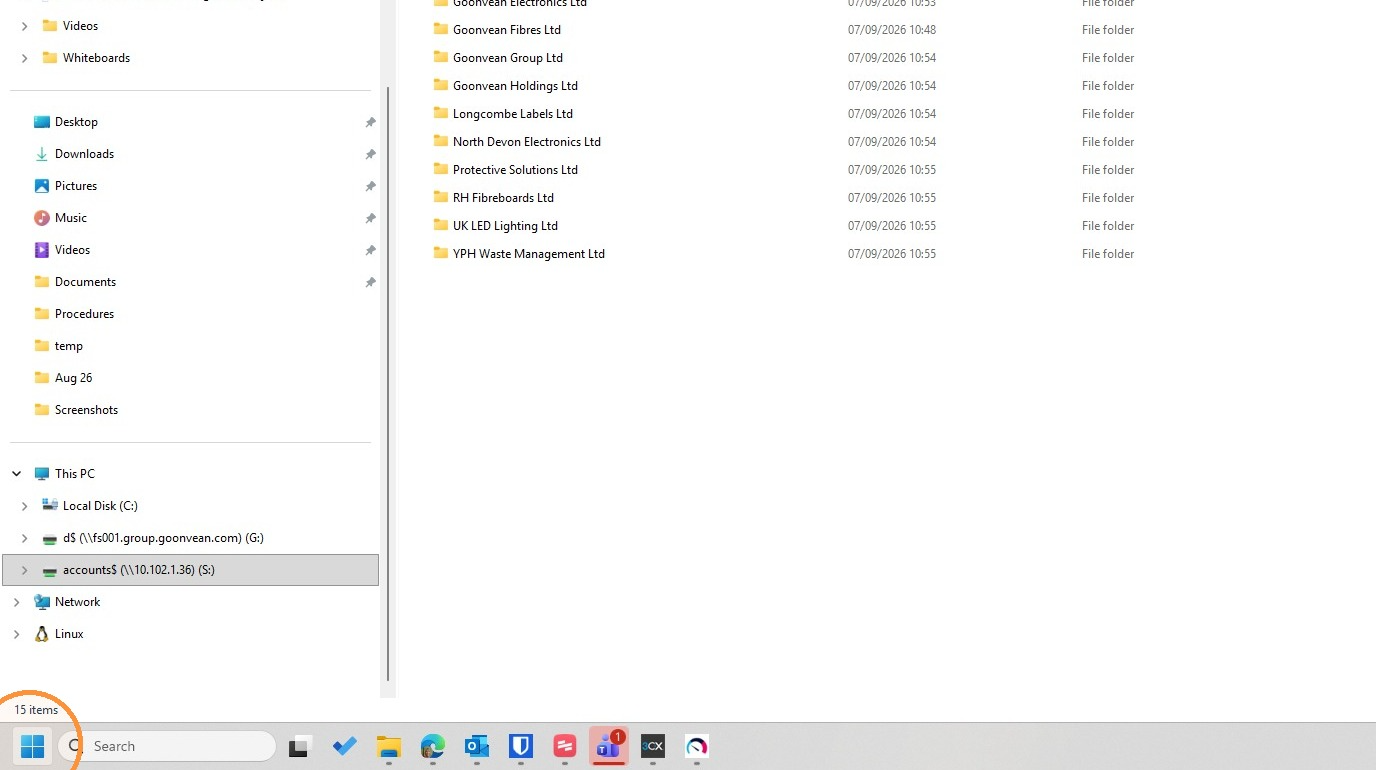
1. Please check you have a new drive mapping to S: then click the Windows Start button.
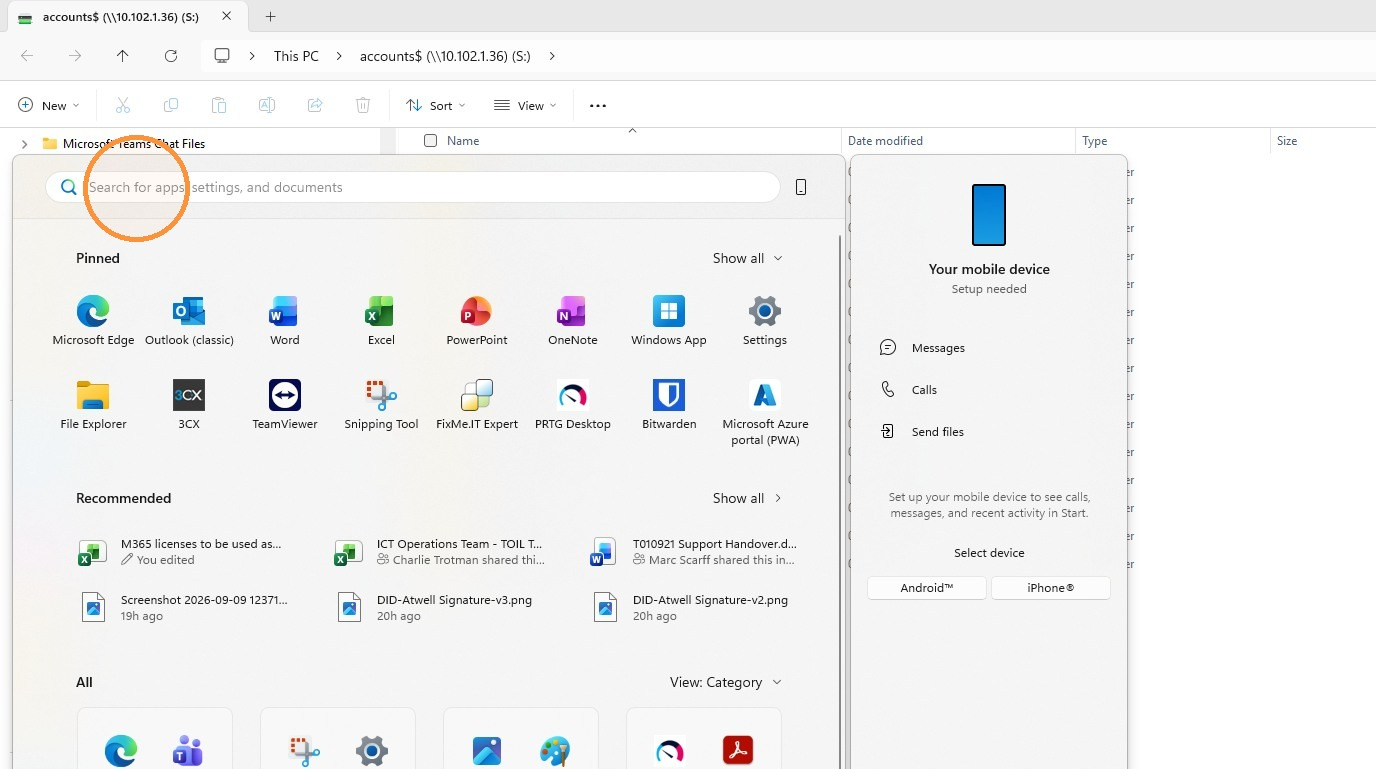
2. Click "Search for apps, settings, and documents"
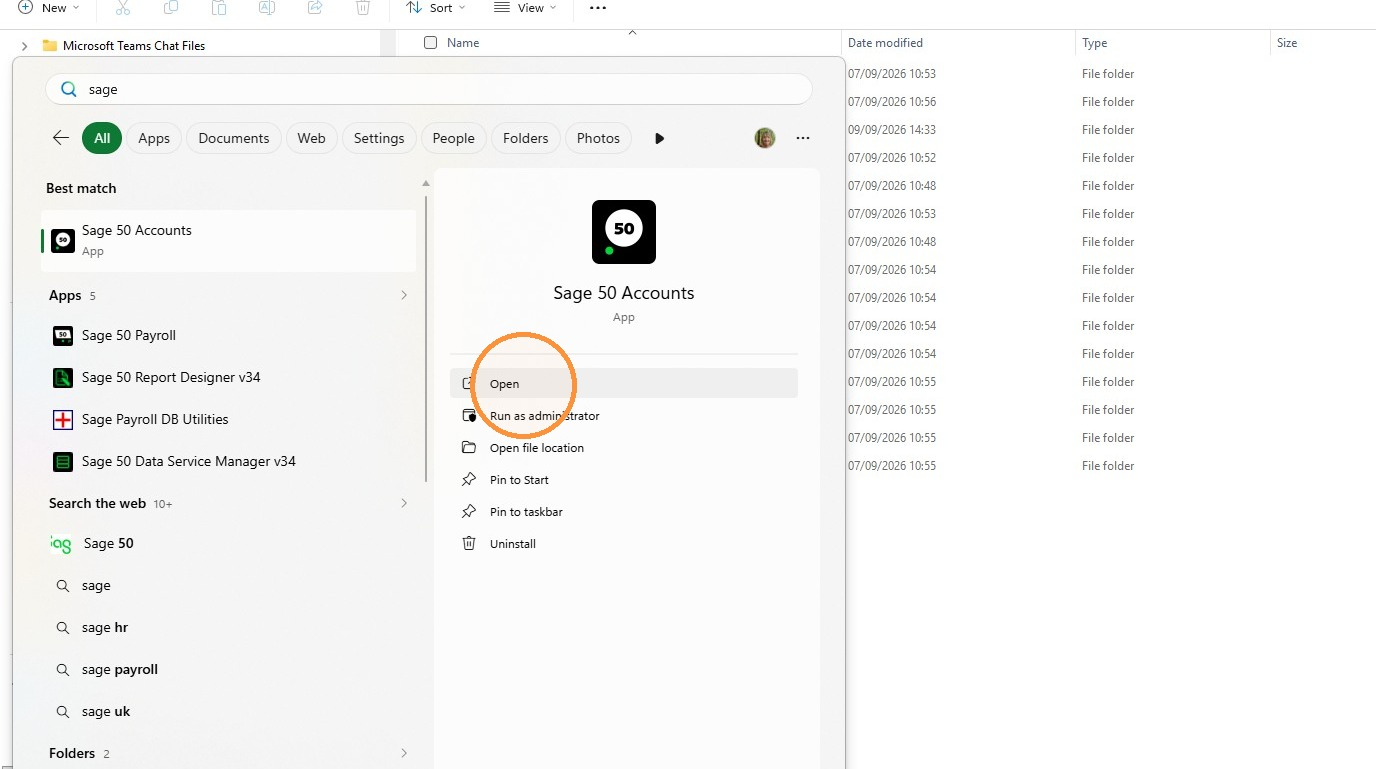
3. Open Sage 50 Accounts. At this point you can Pin Sage to the Taskbar if you wish.
Add the Company
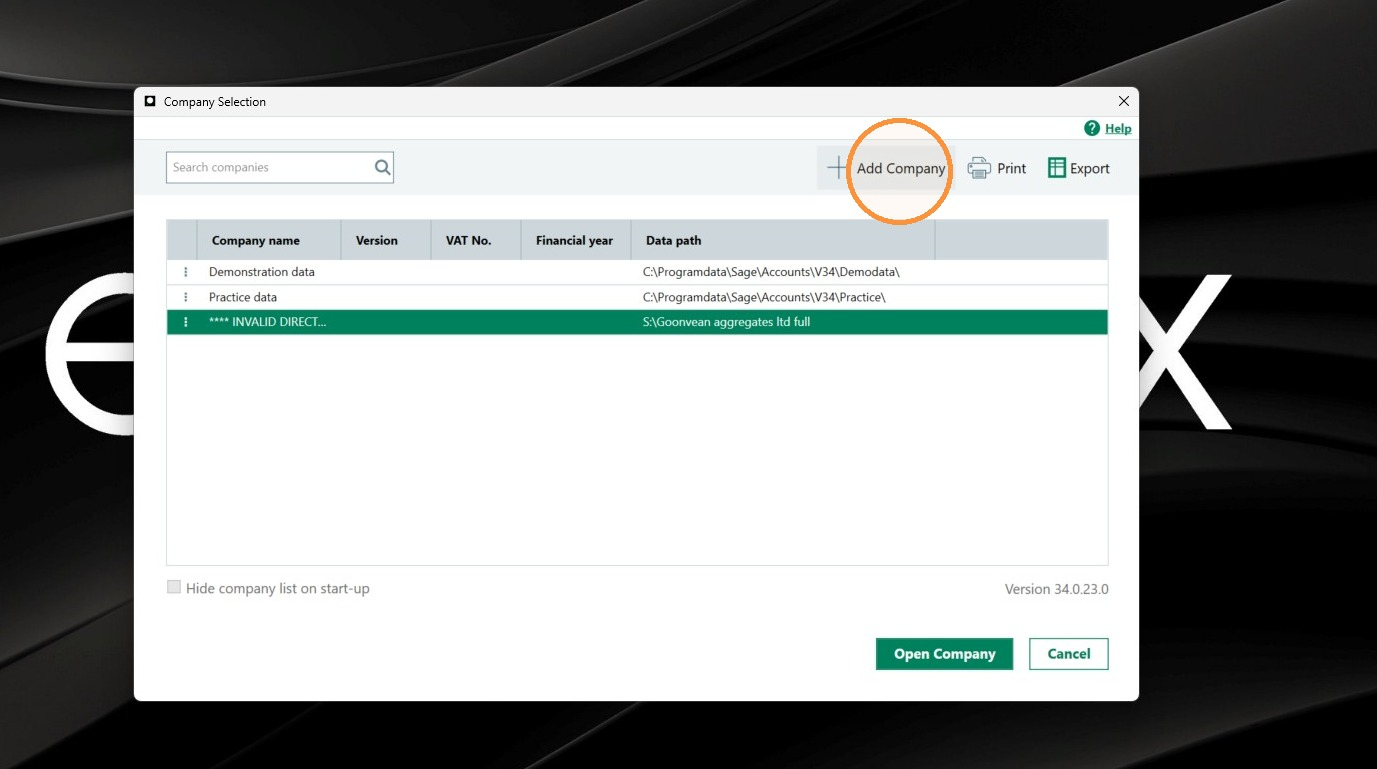
4. Click Add Company. You will need to do this for each company you wish to use and have access to.
5. Select Connect to open a company from a network location.
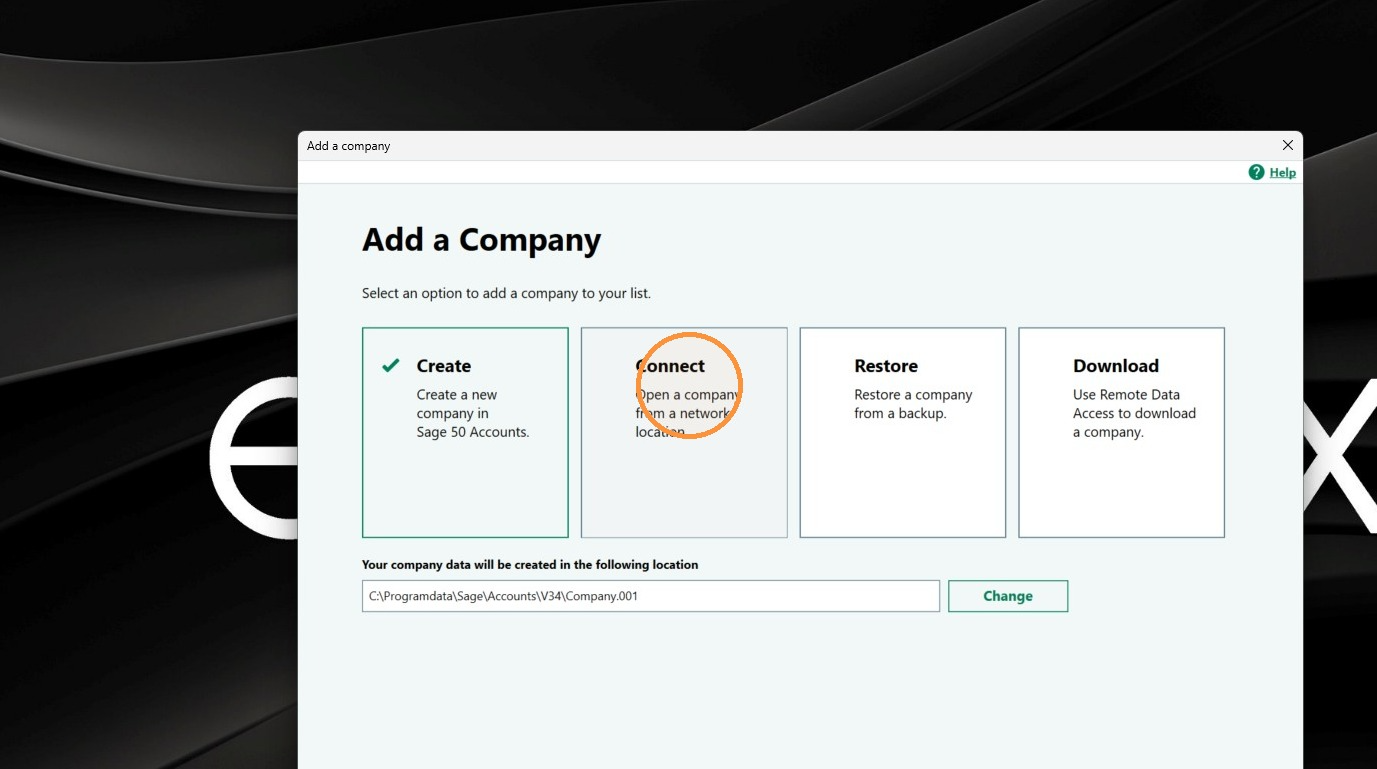
6. Click "Browse"
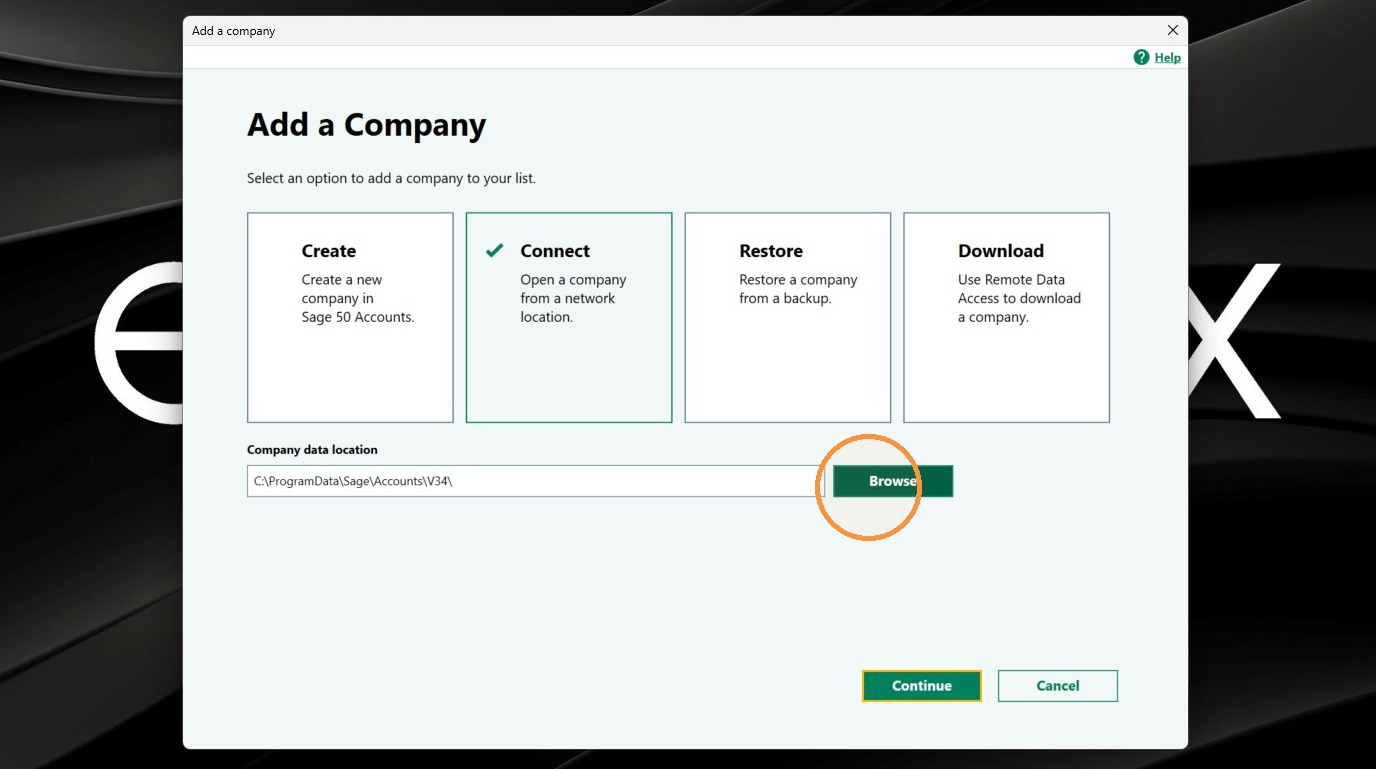
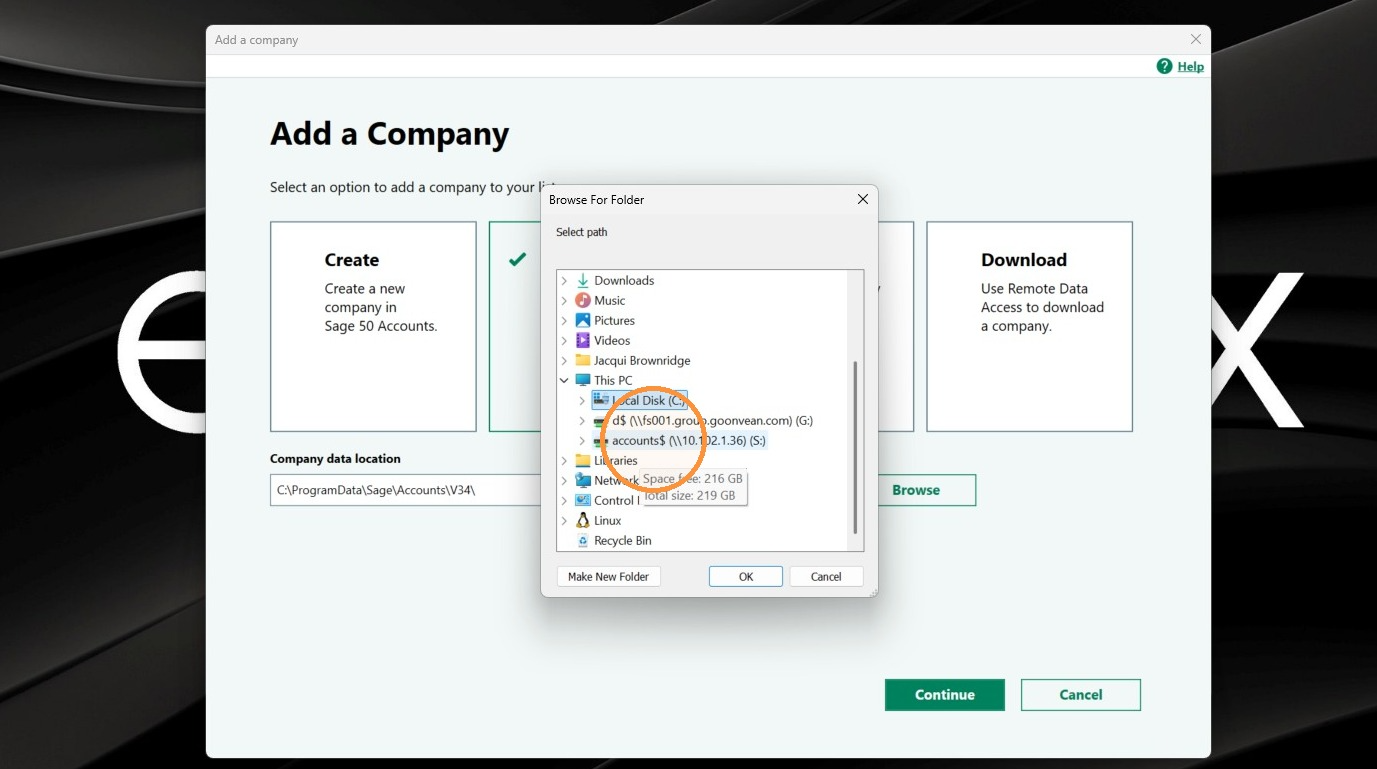
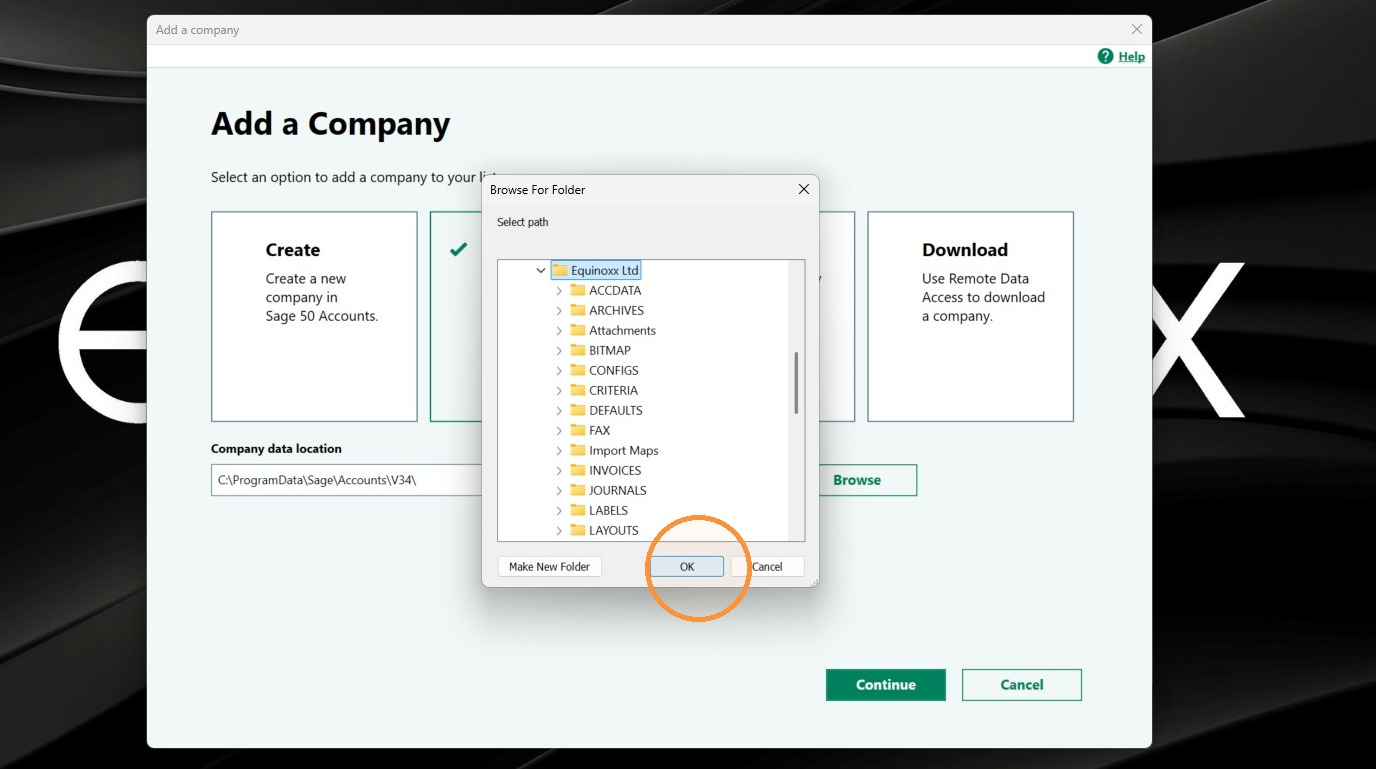
7. Browse to the newly mapped S: drive
8. Click the required company folder
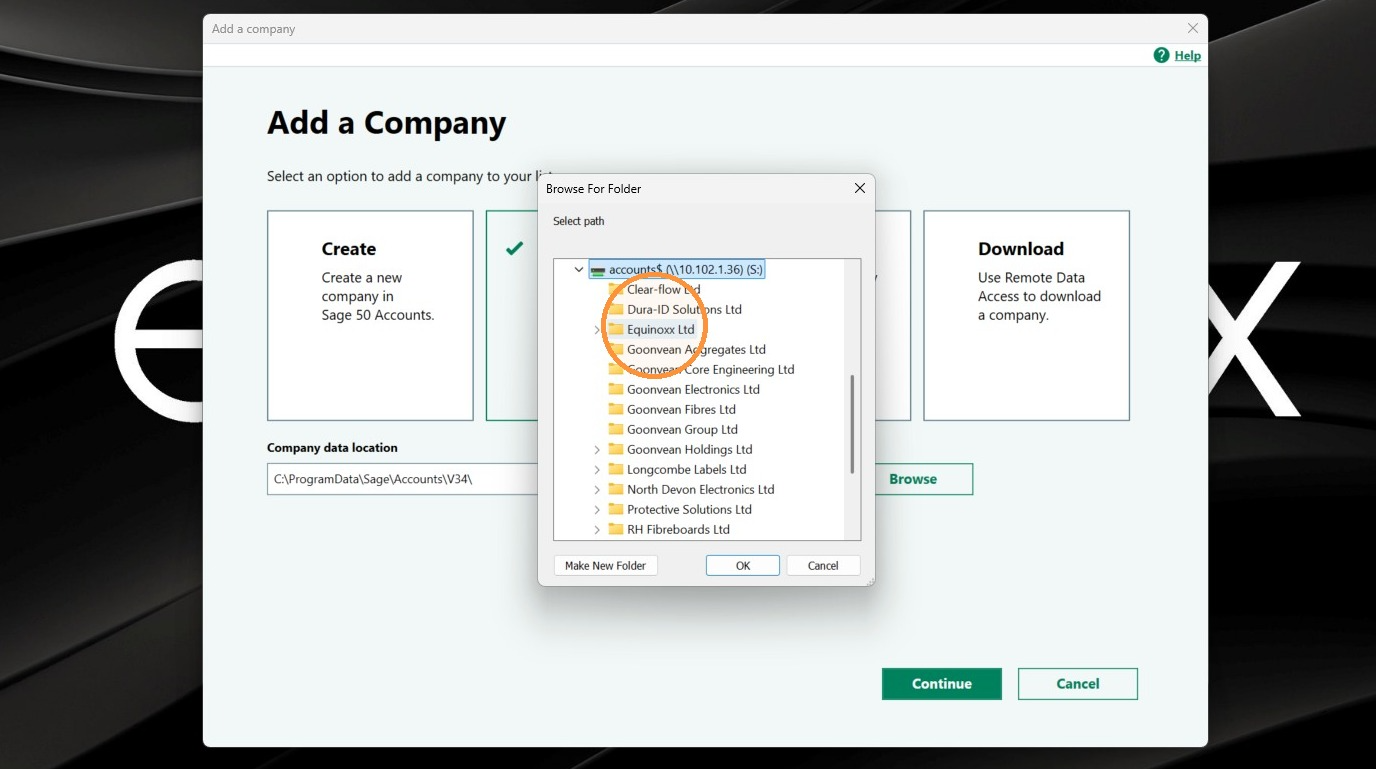
9. Click OK to select the required company folder.
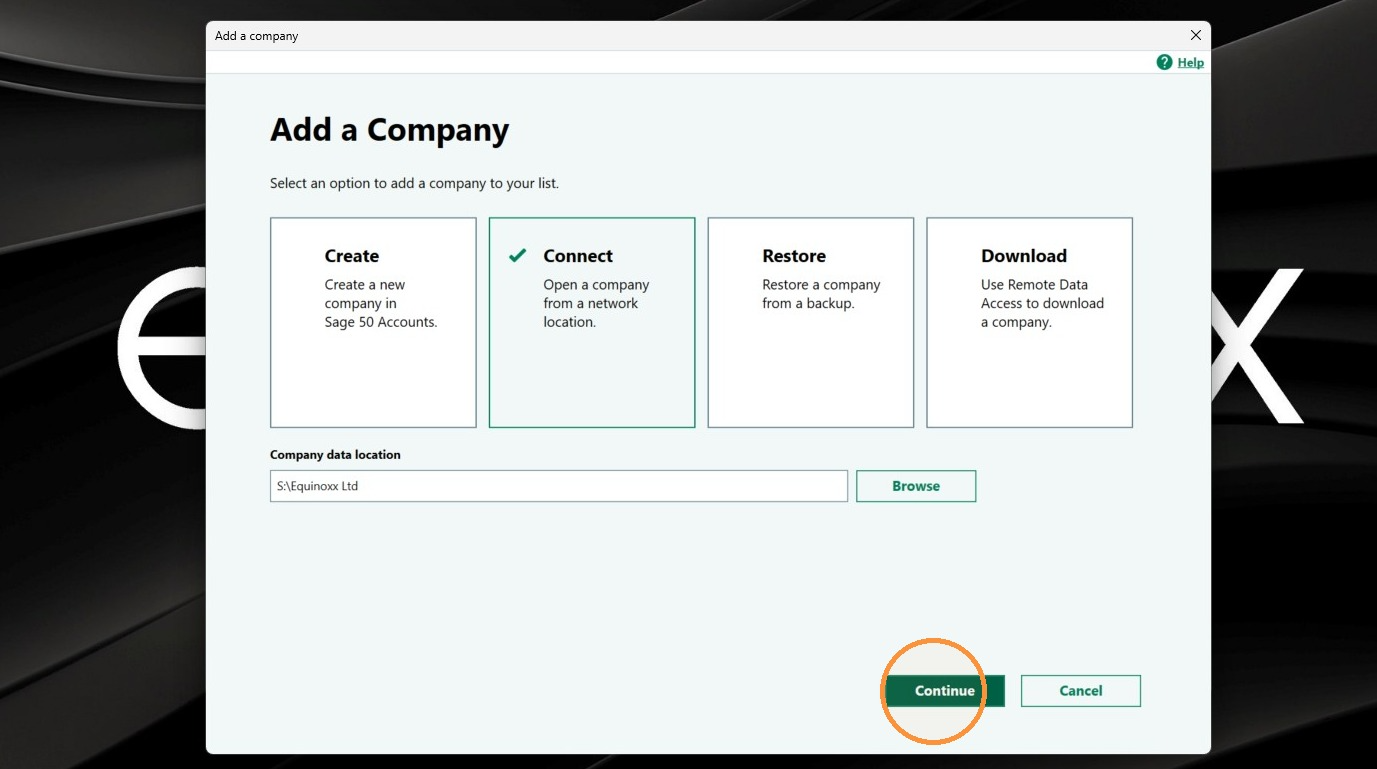
10. Click Continue.
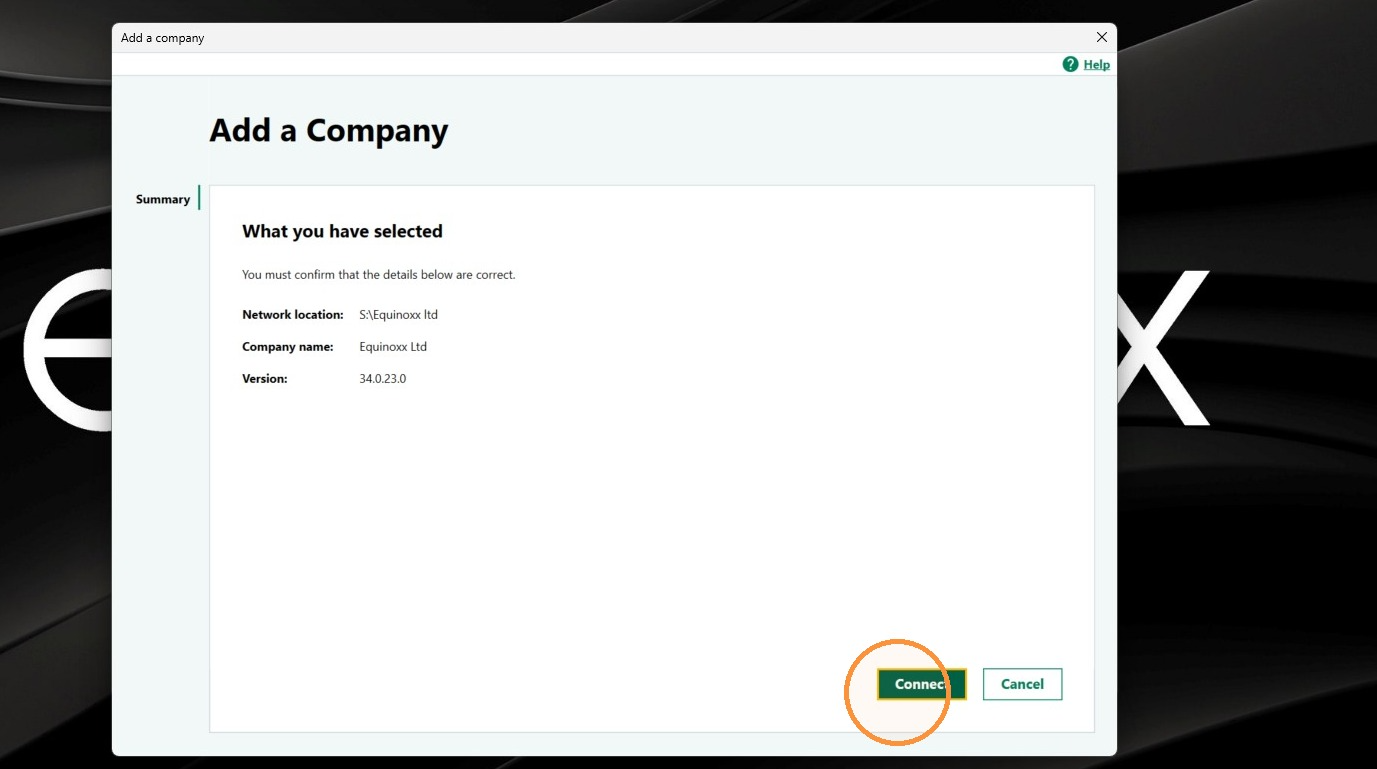
11. Click Connect to confirm the selected company.
Sign In and Configure
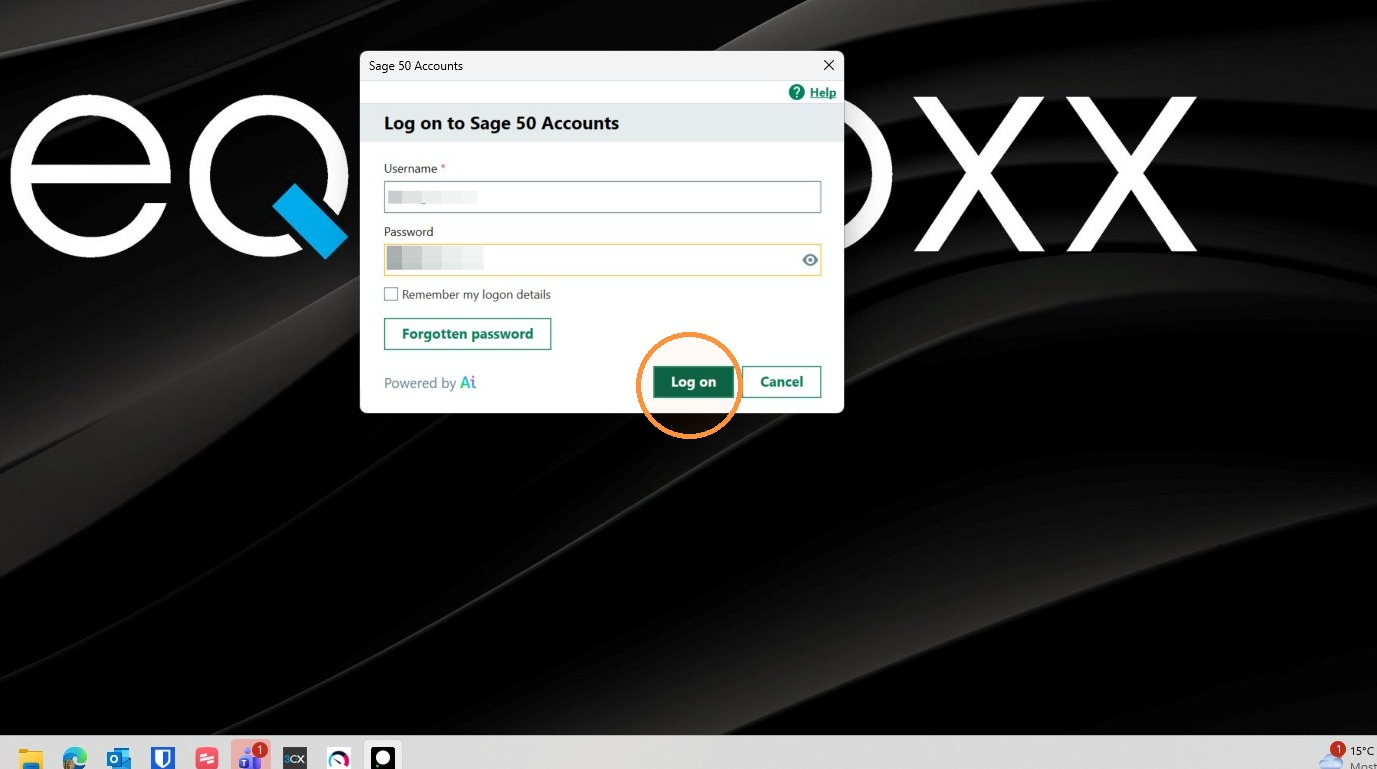
12. Click Log on and enter your Sage login credentials
13. Select Work without connected services. This may change at a later date
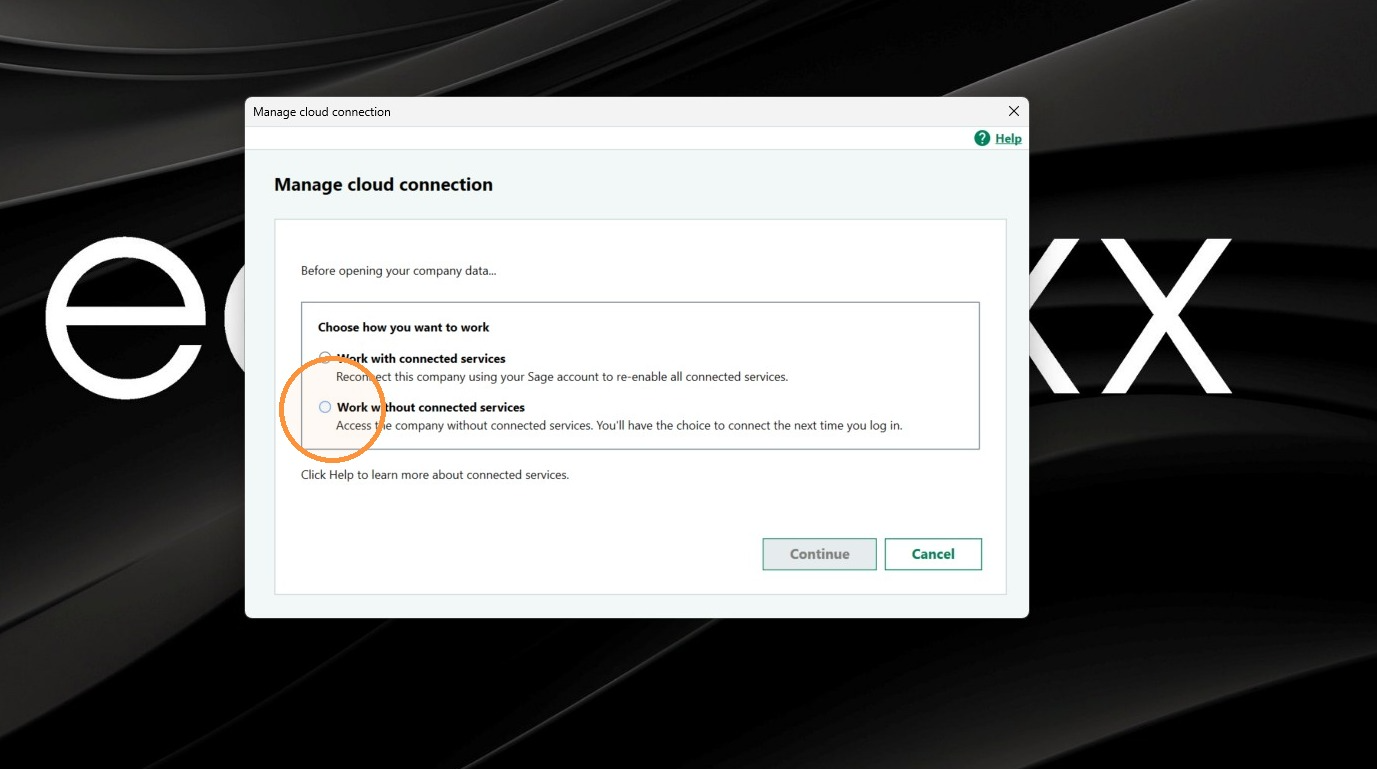
14. Click Continue.
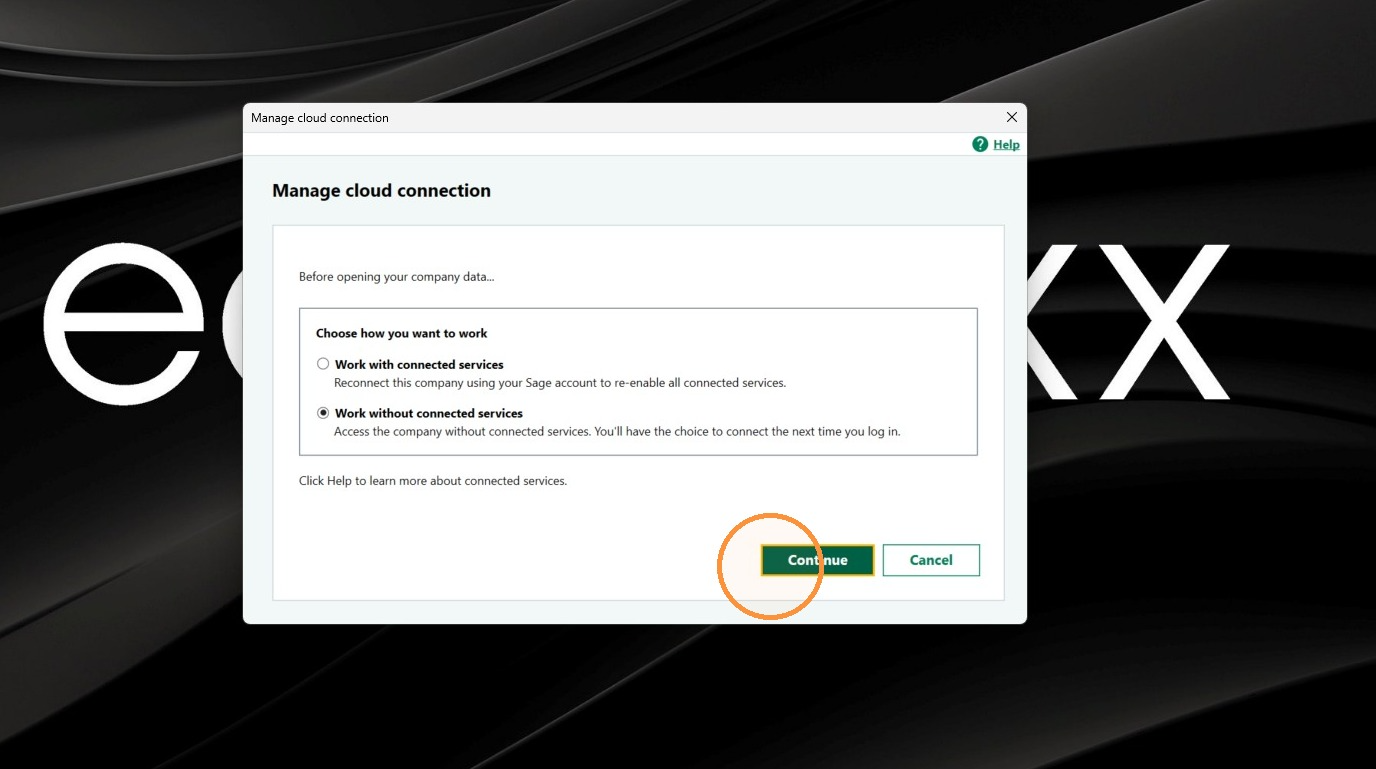
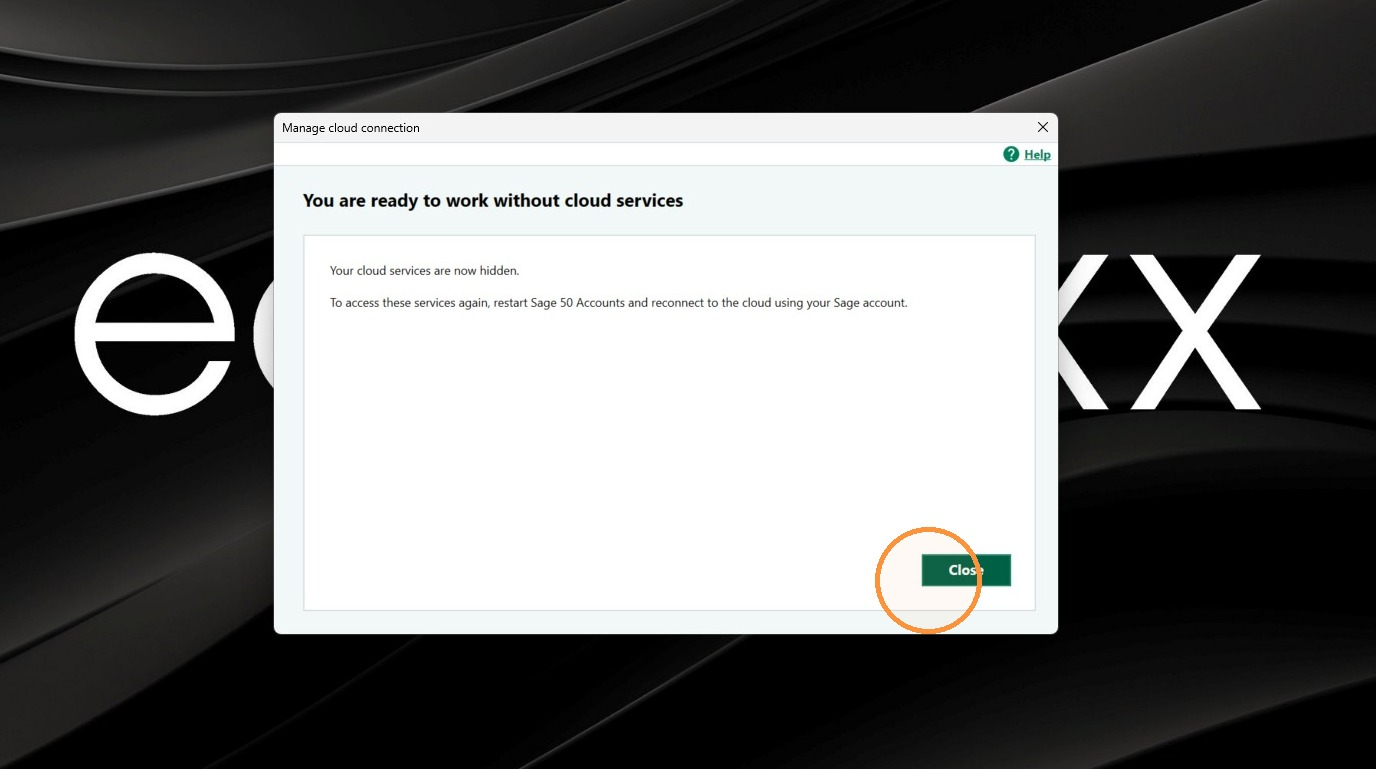
15. Click Close.
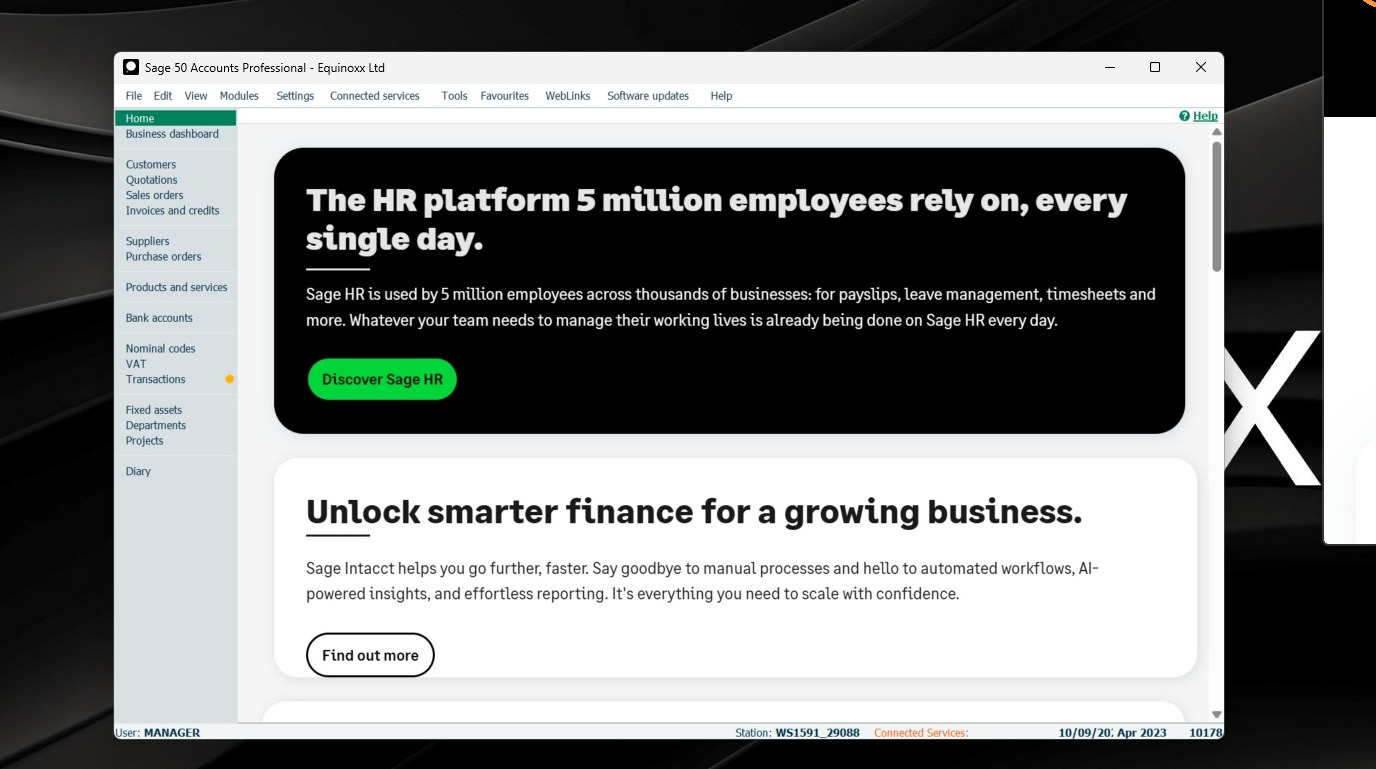
16. Sage will now open.
Was this article helpful?
That’s Great!
Thank you for your feedback
Sorry! We couldn't be helpful
Thank you for your feedback
Feedback sent
We appreciate your effort and will try to fix the article