3CX can be accessed from Windows, Mobile and Web applications. Please follow the instruction below to setup each.
TABLE OF CONTENTS
- Setup your 3CX account
- Install the Windows Web App
- Install the Android Application
- Install the iPhone Application
Setup your 3CX account
If your account has already been created, you should have received your welcome email. Please contact IT support if you don't have one or your code has expired.
Setting up your account will allow you install any Windows or Mobile apps you might need.
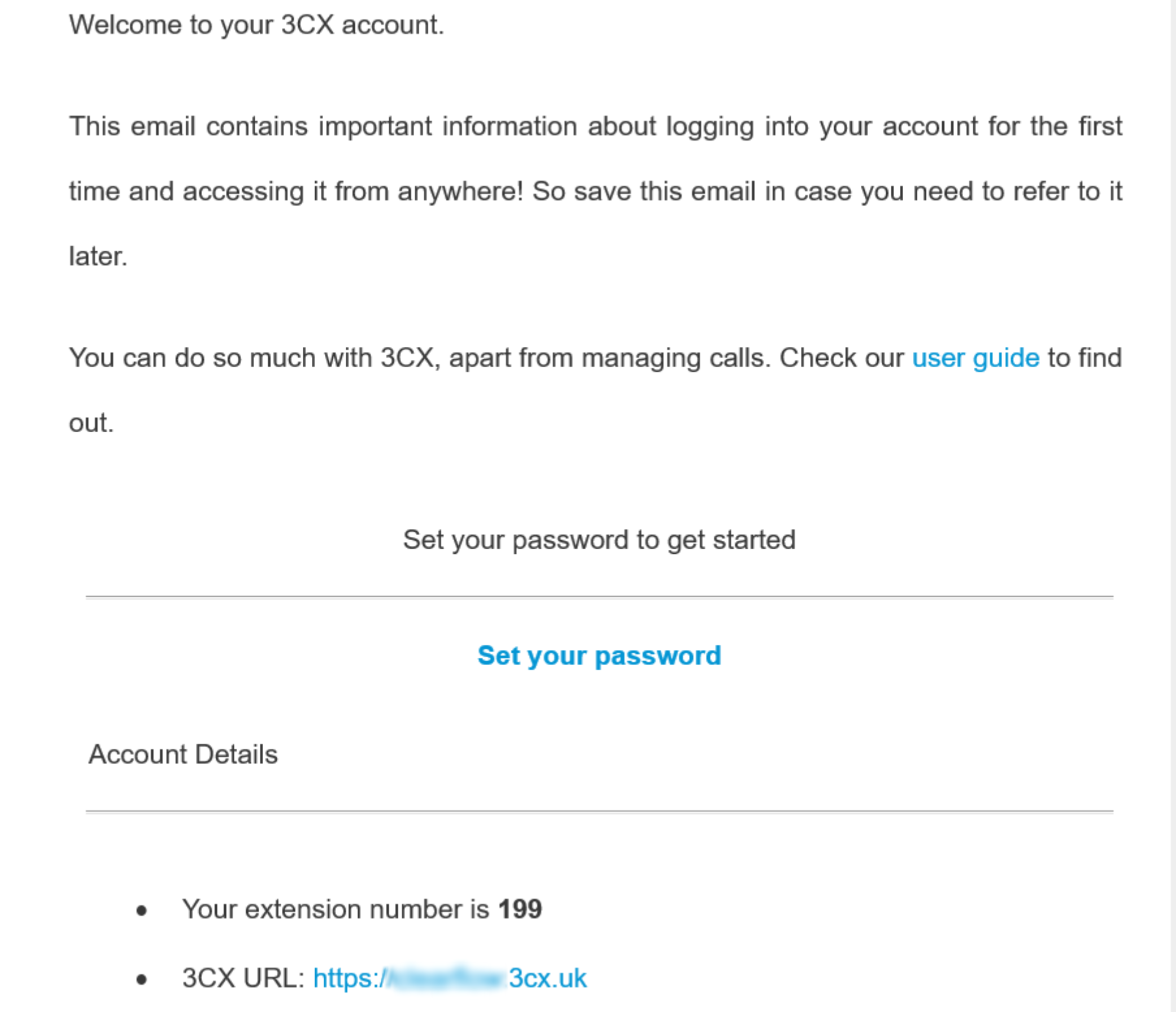
- When your 3CX account is created, you will receive a Welcome Email from 3CX. This contains a link called "set your password". Click the link and set a password as per the instructions
- In the same email you will see link called 3CX URL. Click on this link and save this to you favourites in your web browser
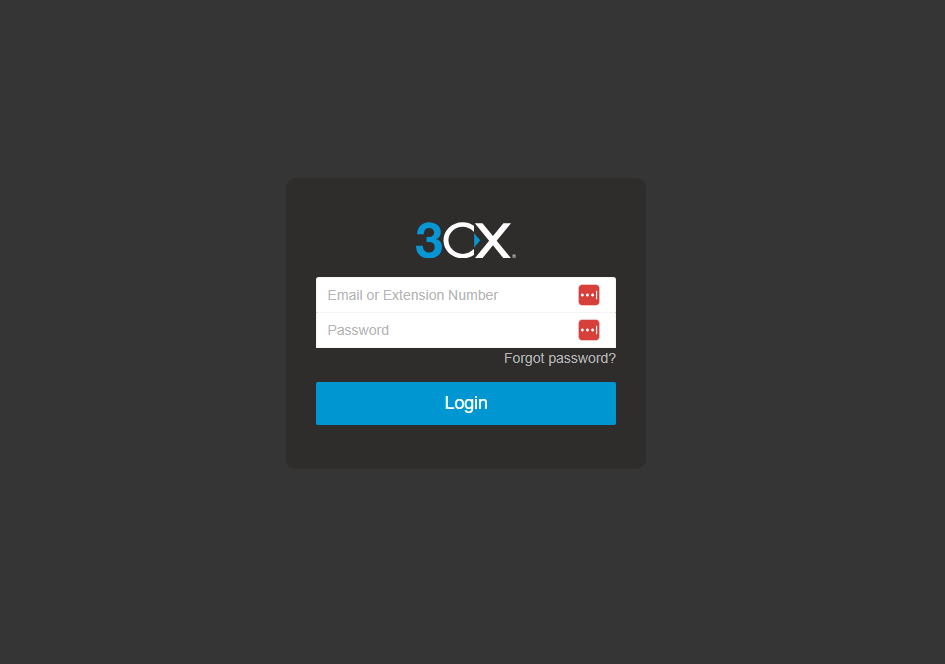
- Navigate to the 3CX URL and enter your extension number as the username and the password you just set
- You are now logged into the web client and can make calls, search contacts and listen to voicemails via this page
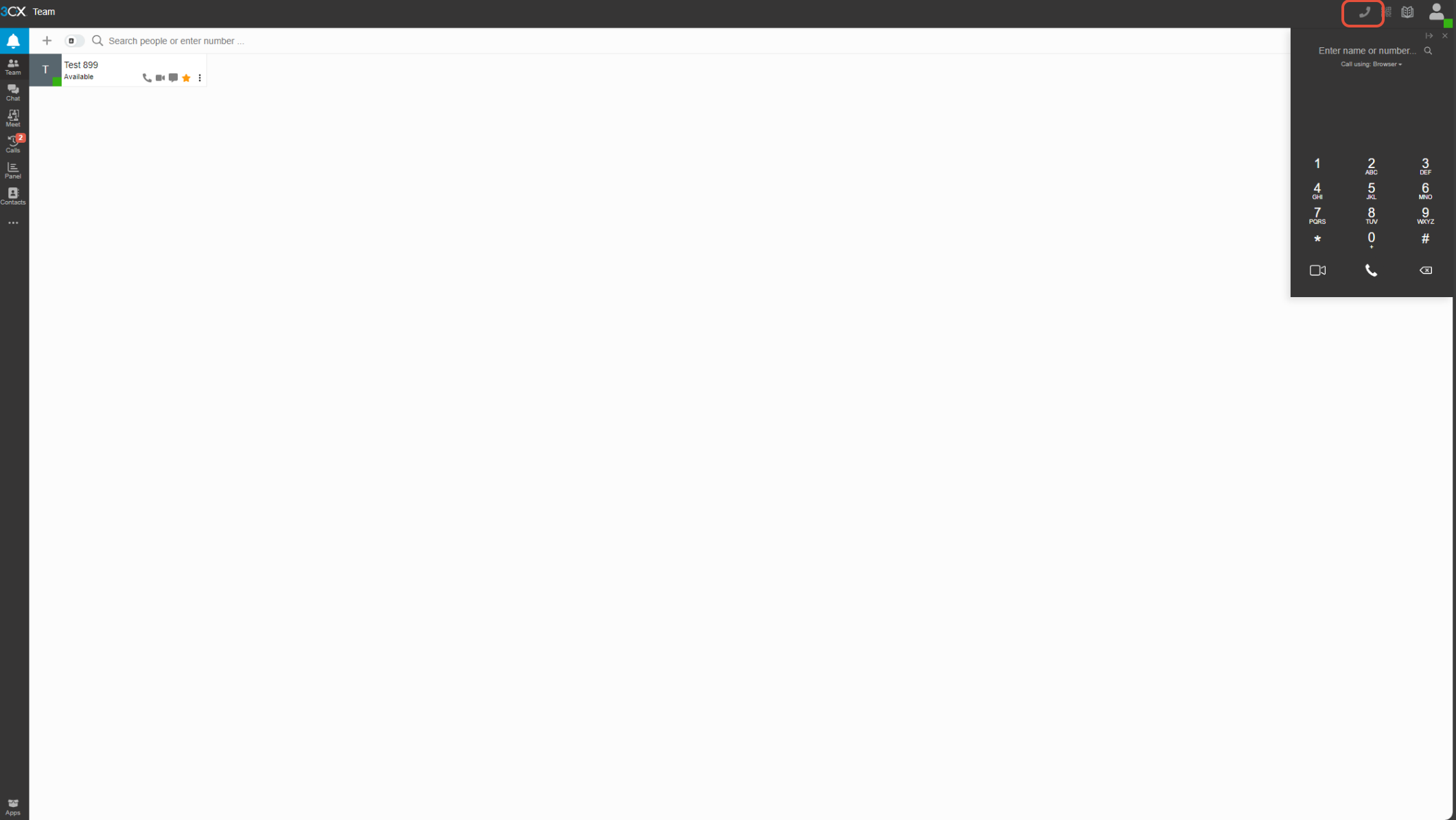
- To make calls made via the web client dial through your handset, click on the telephone handset icon at the top right and click the dropdown that says "call using browser" and switch it to desk phone
Install the Windows Web App
The Windows web app is similar to the web client, but installed locally to your PC and will load whenever you boot your PC.
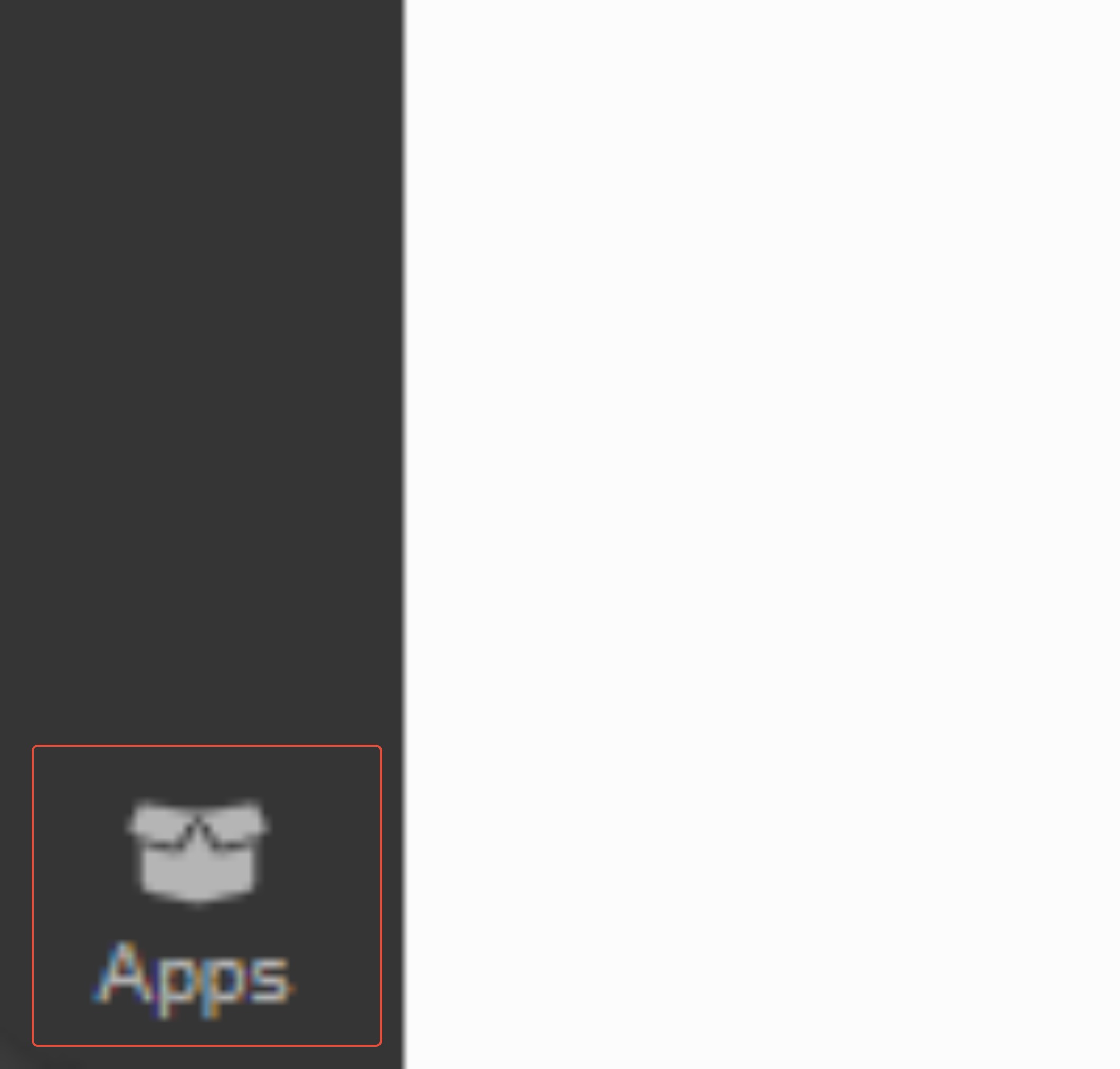
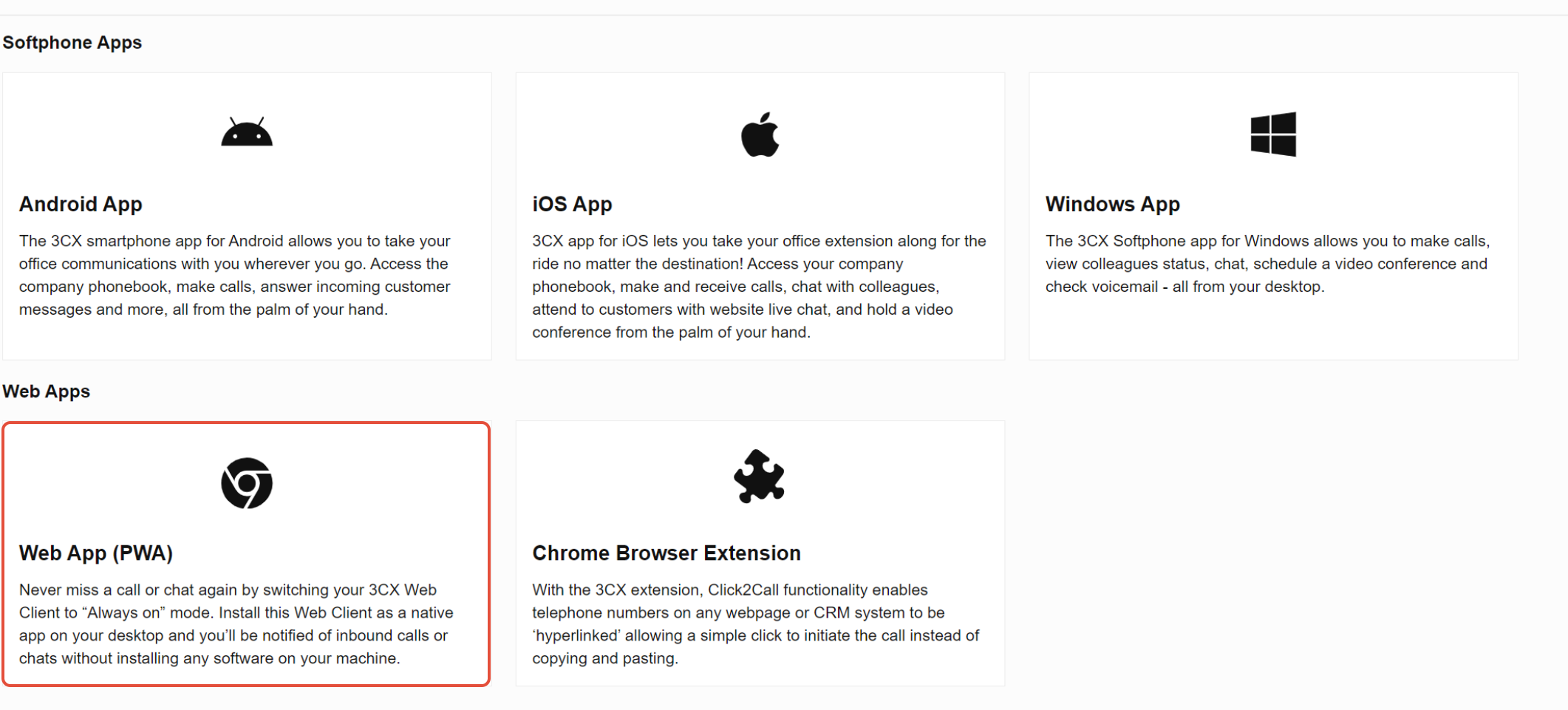
- Log in to 3CX via the web browser and click the Apps icon in the bottom left corner
- Click on the tile for the Web App (PWA)
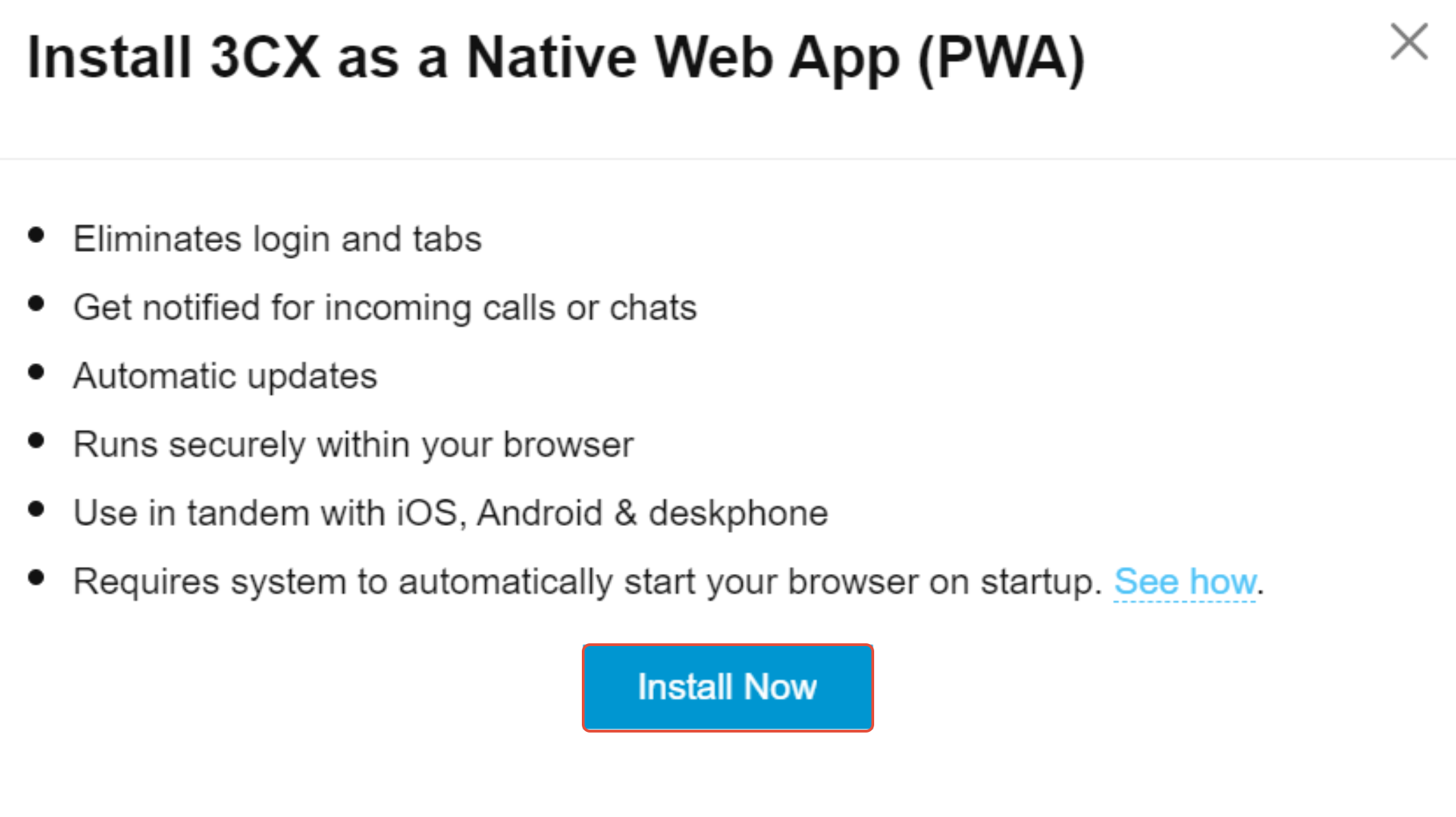
- Press the blue Install Now button
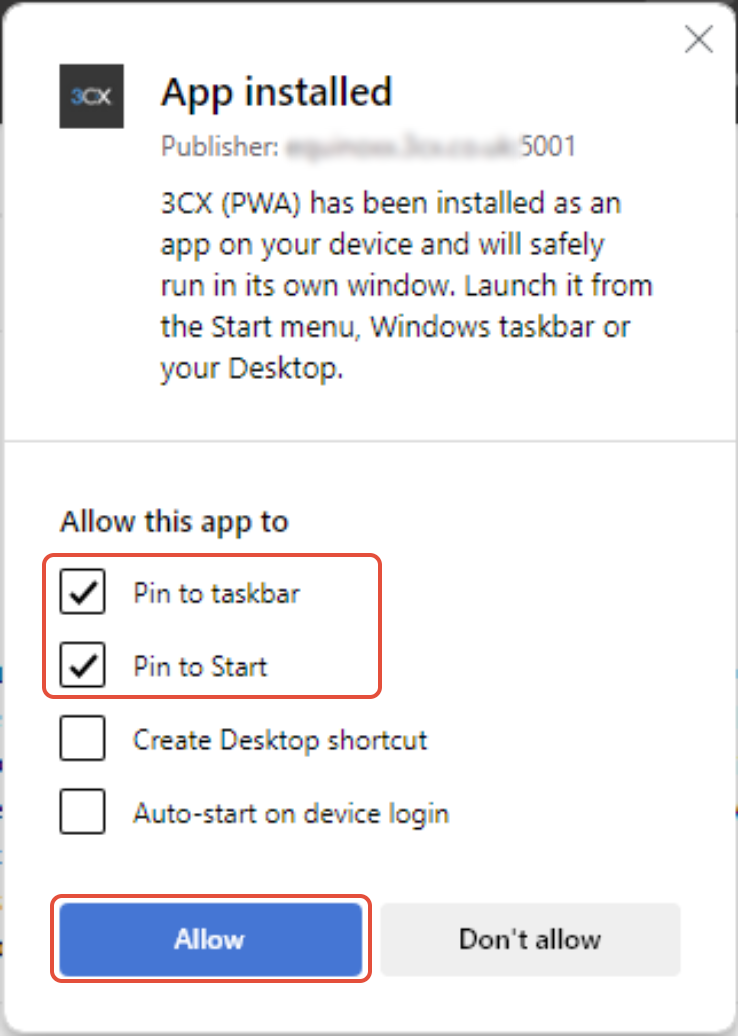
- Once the app has installed, you'll be prompted for the options to pin to taskbar etc. Select which options you'd like and click Allow.
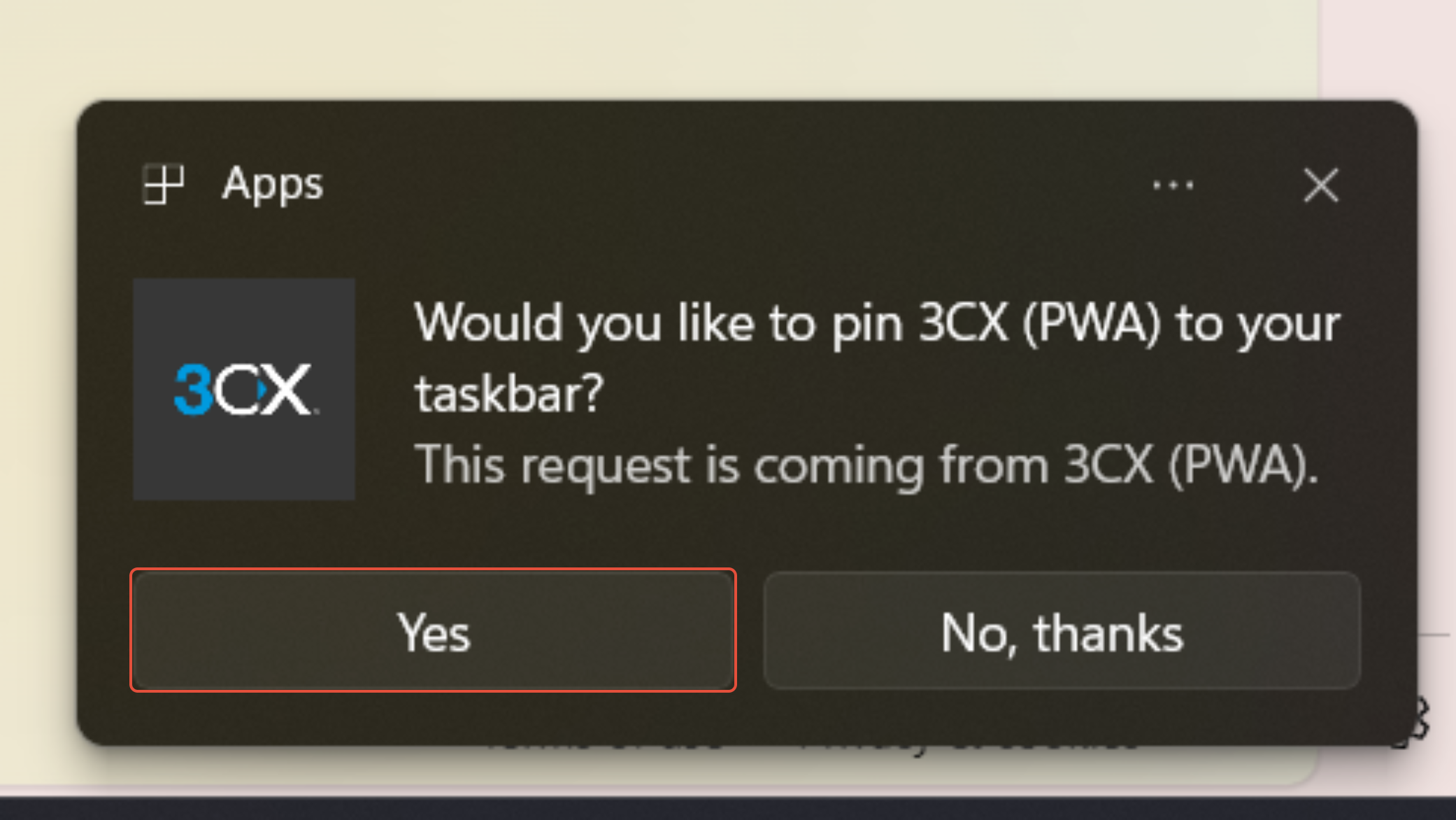
- When prompted if you would like to add the app to your taskbar choose "Yes". This will allow you to find the app more easily
Your 3cx Web App is now installed on your machine.
Install the Android Application
- Open the Play Store on your android device and search for "3CX". Download the app with the following icon

- While the app is installing, navigate to the 3CX web client URL which you should have received in your welcome email
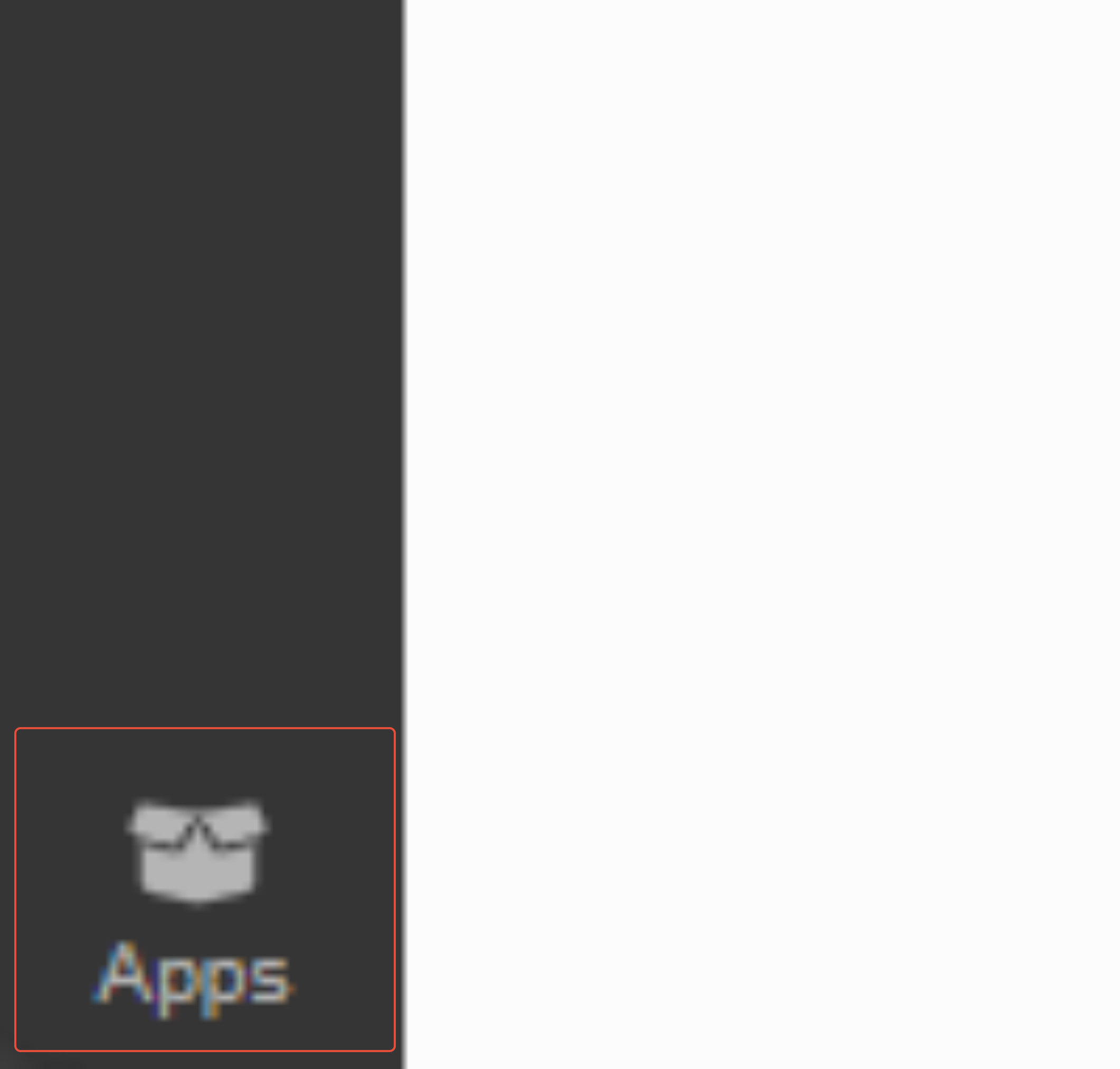
- Sign in with your extension and click on the Apps icon in the bottom left of the screen
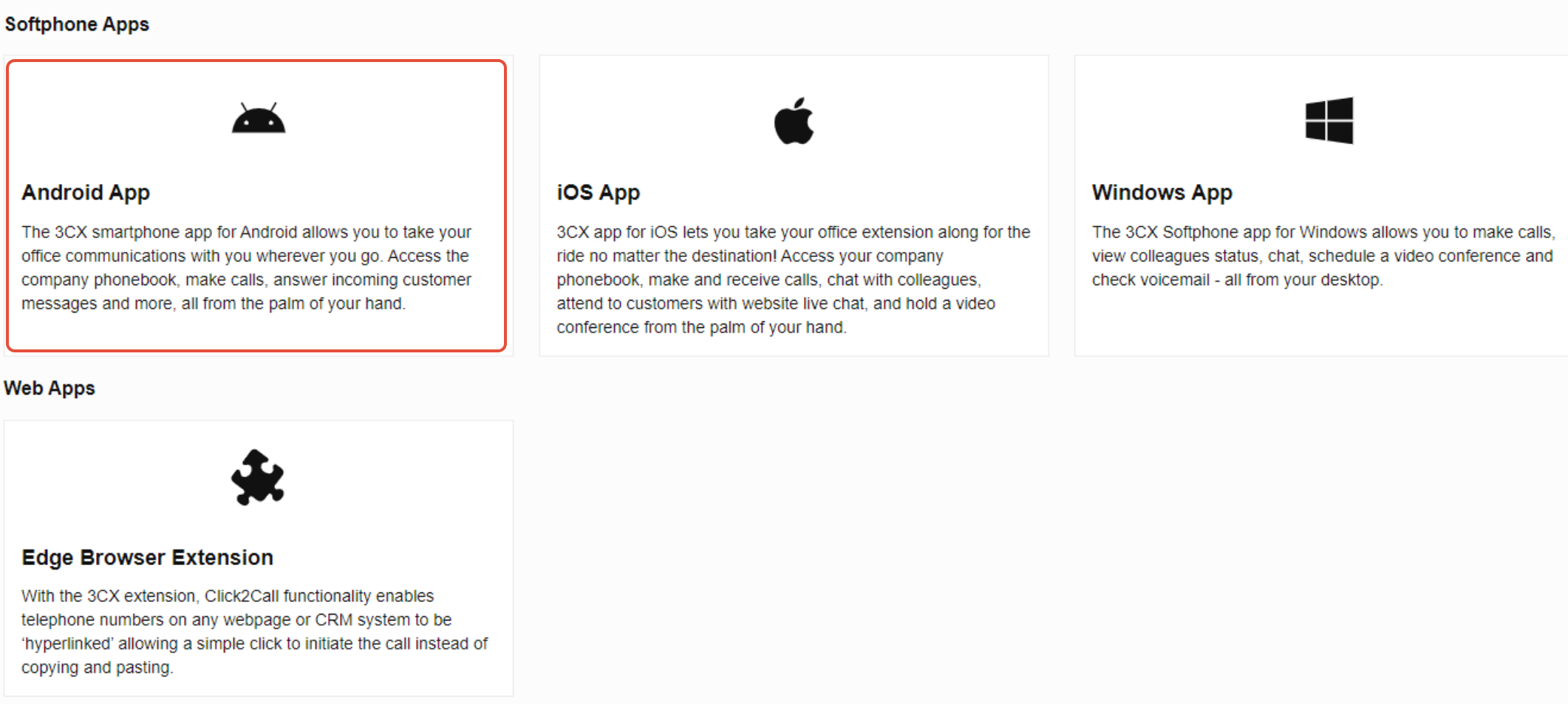
- Click on the Android App tile. You should be presented with a QR code
- Open the 3CX app on your mobile phone and press next through the initial options until you are prompted to scan a QR code
- Scan the QR code from step 3. Your phone should now be provisioned to your extension
Install the iPhone Application
- Open the App Store on your iPhone and Search for "3CX". Download the app with the following icon

- While the app is installing, navigate to the 3CX web client URL which you should have received in your welcome email
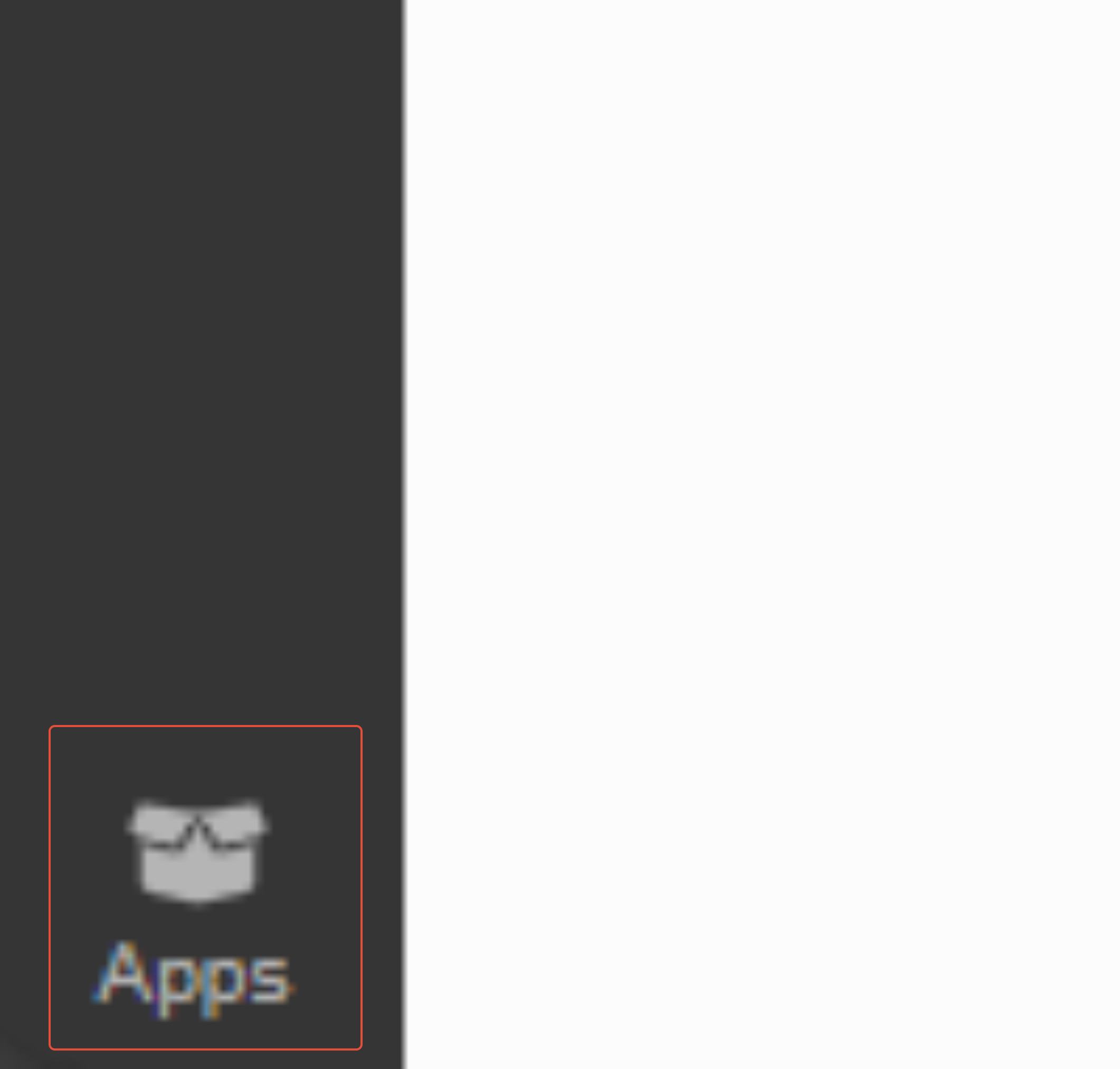
- Sign in with your extension and click on the Apps icon in the bottom left of the screen
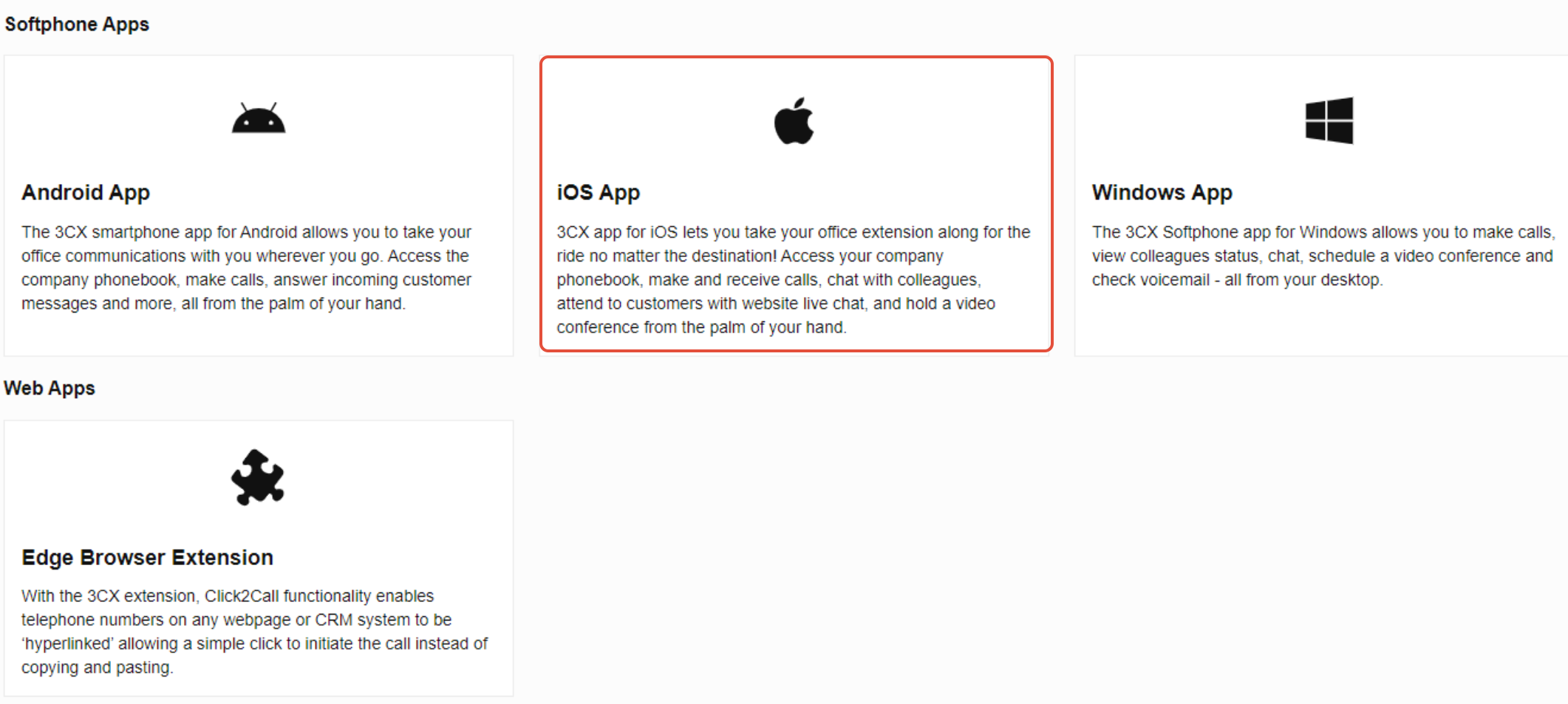
- Click on the iOS tile. You should be presented with a QR code
- Open the 3CX app on your mobile phone and press next through the initial options until you are prompted to scan a QR code
6. Scan the QR code from step 3. Your phone should now be provisioned to your extension
Was this article helpful?
That’s Great!
Thank you for your feedback
Sorry! We couldn't be helpful
Thank you for your feedback
Feedback sent
We appreciate your effort and will try to fix the article